Set up your own server
This page is for you if you want sync or the AI features and you are not a programmer. It takes you through every step, from an empty computer to Ask and Plan working on your phone. It takes about an hour. Most of that time is waiting for downloads. Everything on this page can be done for free; the one optional exception is the paid Google tier for AI in step 4.
A server is a program that runs all the time on one computer and looks after your houses for your other devices. Think of it as a home post office that all your devices send to and collect from.
You don't need a server to use Doorprints. A server only adds three things:
- the same houses on your phone and in your browser. This is called sync: the apps keep in step with each other;
- the AI features: Ask, Plan, the Android Assistant and Fill in from listing text, with its owner's Gemini key (without a server, you can use your own key);
- an extra copy of your houses on a computer you own.
Two different keys
People mix up these two keys more than anything else. They are not the same thing.
| Doorprints API key | Gemini API key | |
|---|---|---|
| What it is | A long password that you make up for your server | A key from Google that lets your server use Google's AI |
| Needed for | Sync, and the AI features | Only the AI features |
| Needed at the start? | Yes. The server won't start without it. | No. Add it later, whenever you want AI. |
| Where you get it | You make it yourself in step 3 | From Google AI Studio, in step 4 |
| Where you type it | In the server's settings file. The apps don't need it: they connect with a short code or a QR code (step 9). | On your owner page (step 8), or in the server's settings file. The apps never ask for it. |
Keep both keys secret
Anyone with your Doorprints API key and your server's address can read and change your houses. Anyone with your Gemini key can use up your AI allowance. Keep both keys in a password manager. Don't put them in a chat or an email.
What you need
- A computer that stays on: a Windows 10 or 11 PC, or a Mac. This computer is your server. It must be on and awake whenever you want to sync or use AI. When it is off, the apps still work as normal. They sync the next time they can reach it.
- At least 8 GB of memory (RAM) and about 10 GB of free disk space. You also need Wi-Fi for the first download.
- No sleeping: stop the computer from going to sleep by itself.
- Windows: open Settings → System → Power (Power & sleep on Windows 10). Set Sleep to Never when plugged in.
- Mac: open System Settings → Battery (or Energy) → Options. Turn on Prevent automatic sleeping.
- Free accounts: Docker (for the server), Tailscale (so your phone can reach the server safely) and, for AI, a Google account.
How it fits together
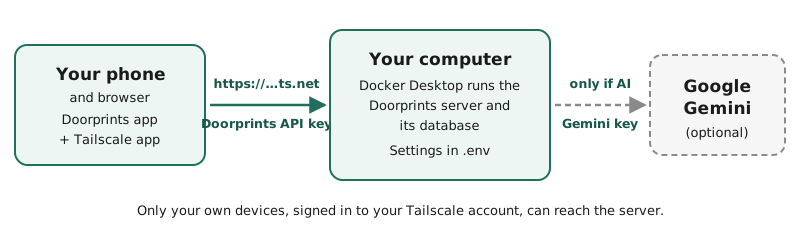
- Docker runs the Doorprints server on your computer.
- Tailscale gives the server a private
https://address. Only your own devices can open it. (Other people may see the address's name, but they cannot open it.) - The Doorprints apps on your phone and in your browser use that address and your Doorprints API key.
- If you turn on AI, the server sends your questions to Google's Gemini, with your Gemini key. The apps never talk to Gemini themselves.
A few words you'll meet
- Docker: a free program that runs the Doorprints server for you. It is like a box that holds everything the server needs, so you don't install each part yourself.
- Tailscale: a free app that joins your own devices into a private network. It is like a private road between your phone and your computer that nobody else can use.
- Terminal: a window where you type commands instead of clicking. Step 2 shows how to open one.
- API key: a long password. The apps show it to your server to prove they are allowed in.
- Address: where to find your server, like a website address (for example
https://…). - HTTPS: the safe kind of web address. It starts with
https://and shows a padlock in a browser.
Step 1: Install Docker Desktop
- Go to docker.com/products/docker-desktop. Download Docker Desktop for your computer. It is free for personal use.
- Install it, then open it.
- On Windows, the installer may ask to restart the computer, or to install "WSL". Say yes.
- It may say virtualisation is turned off. This is a setting in the BIOS, the computer's built-in setup screen. Your computer maker's help pages show how to turn it on. You may want a friend's help with this one step.
- Wait until Docker Desktop says Engine running (bottom left). You don't need to sign in.
Step 2: Download Doorprints
- Open the Doorprints code page. Choose the green Code button, then Download ZIP.
- Unzip it into your Documents folder. You now have a folder called doorprints-main.
- Open that folder. If you see another doorprints-main folder inside, open that one too. The right folder has a file called docker-compose.yml in it. On the rest of this page, doorprints-main means that folder.
- Open a terminal in that folder:
- Windows: open doorprints-main in File Explorer. Right-click an empty space in the folder and choose Open in Terminal. (On Windows 10: hold Shift while you right-click, then choose Open PowerShell window here.)
- Mac: in Finder, right-click the doorprints-main folder and choose New Terminal at Folder. (If you don't see it, turn it on in System Settings → Keyboard → Keyboard Shortcuts → Services → Files and Folders.)
Keep this terminal window open for the next steps. You will type (or paste) the commands below into it. Press Enter after each one.
Keep the folder name
The server stores your houses under the folder's name. If you later rename or move doorprints-main, the server starts with an empty list. Your houses are not lost. Move the folder back to see them again.
Step 3: Make your Doorprints API key
Your key must be at least 32 characters long and hard to guess. Let the computer make one for you.
-
Windows (in the terminal from step 2). This command makes a long random key:
[guid]::NewGuid().ToString('N') + [guid]::NewGuid().ToString('N') -
Mac. This command makes a long random key:
openssl rand -hex 32
You get one long line of letters and numbers, like 3f9c…e71a. Copy it into your password manager. Name it
Doorprints API key.
Step 4 (optional): Get a free Gemini key for AI
Skip this step if you only want sync. You can come back to it later.
- Go to aistudio.google.com/apikey and sign in with a Google account.
- Accept Google's terms if it asks.
- Choose Create API key.
- Copy the key into your password manager. Name it Gemini API key.
The free tier has a daily limit. When you reach it, AI answers fail until the next day. Everything else keeps working.
What the AI sees, and Google's free-tier terms
Before anything goes to the AI, Doorprints removes each house's saved contact name and most phone numbers. Some things are still sent: other names in your notes, your questions, and the other details of your houses. Text you paste into Fill in from listing text is sent too. For its free tier, Google says three things (Gemini API terms): people may read what you send; Google may use it to improve its products; and you should not send personal information. If that worries you, use the paid tier (below), leave AI off, or keep personal details out of your notes.
The paid tier: a small cost, more privacy
You can move the same key to Google's paid tier. This helps in two ways:
- Privacy: on the paid tier, Google says it does not use what you send to improve its products. This is the main reason to pay.
- No daily limit to run out of in normal use.
What it costs. You pay only for what you use. There is no monthly fee. The cost per pasted ad, per question and per plan, and for a busy month, is in one table: What it costs. Keeping your houses searchable costs far less than the questions. Prices change. Check Google's price list.
How to switch:
- Open aistudio.google.com/apikey. Next to your project, in the Billing Tier column, choose Set up billing.
- Create or pick a Google Cloud billing account and add a payment card.
- Choose Prepay and add the minimum, US$5. Prepay means you pay first. With automatic top-up left off, Google never charges you more than you put in.
- Optional but wise: on the Spend page, under Monthly spend cap, choose Edit spend cap. Set a small limit, for example US$2. (Google says the cap can take about ten minutes to start working.)
Your Gemini key stays the same, so you don't change anything on your server. Doorprints also limits AI use by itself: at most 10 AI requests a minute, and each answer is kept short.
Step 5: Write the server's settings file
The server reads its settings from a file called .env (a dot, then "env") in doorprints-main. Type this command
in the terminal to open it:
- Windows:
notepad .env. When Notepad asks to create a new file, choose Yes. - Mac:
touch .env && open -e .env
Paste these lines into the file. Then replace the two "paste-your" parts with your own keys:
APP_API_KEY=paste-your-Doorprints-API-key-here
APP_CORS_ORIGINS=https://doorprints.web.app
APP_AI_ENABLED=true
AI_API_KEY=paste-your-Gemini-API-key-here
- Without AI: leave out the last two lines.
- Gemini key on the owner page instead: keep
APP_AI_ENABLED=trueand leave out theAI_API_KEYline. You then paste the key on your owner page in step 8. The server keeps it there in a locked (encrypted) form. - Put no spaces around the
=signs, and no quotation marks. APP_CORS_ORIGINSlets the Doorprints website athttps://doorprints.web.apptalk to your server. Type it exactly as shown.
Save the file and close the editor.
Step 6: Start the server
In the terminal, run this command. It downloads what the server needs, builds it and starts it:
docker compose up --build -d
The first start takes 10 to 20 minutes. Later starts take seconds.
To check it works:
- Wait until the terminal says it is done.
- On that computer, open http://localhost:8080/actuator/health in a browser.
- You should see a short line of text that includes
"status":"UP". The server may need one more minute. If you don't see it yet, reload the page.
Docker Desktop now shows doorprints-main under Containers, with a green dot.
For a fuller check, run tools/server-smoke.sh in doorprints-main (it needs bash and curl: a Mac has both; on Windows use Git Bash or WSL). It tries sync, an import and an export with made-up houses, prints PASS or FAIL for each, and then deletes them. Run it once, before you add your own houses.
Step 7: Reach your server from your phone (Tailscale)
The apps only connect to addresses that start with https://. Also, your server should not be open to the whole
internet. Tailscale solves both. It gives the server a private https:// address. Only devices signed in to your
Tailscale account can open it.
- Make a free account at tailscale.com. You can sign in with Google or Apple.
- Install Tailscale on the server computer and sign in.
- Install the Tailscale app on your phone (Play Store or App Store). Also install it on any other computer where you'll use the Doorprints website. Sign in to the same account on each, and switch Tailscale on.
- Windows only: close the terminal and open a new one in doorprints-main (step 2). A terminal opened
before you installed Tailscale can't find the
tailscalecommand. On a Mac, go straight to the next step. -
Run this command. It shares your server with your own Tailscale devices, at a private
https://address:tailscale serve --bg 8080On a Mac, type this longer form instead. It does the same thing; the Mac app doesn't add the short
tailscalecommand:/Applications/Tailscale.app/Contents/MacOS/Tailscale serve --bg 8080 -
The first time, it shows a link and asks you to turn on HTTPS for your account. Open the link and allow it. Then run the same command again.
- The command shows your server's address. It looks like
https://my-pc.tail1234.ts.net. Save it in your password manager, next to your Doorprints API key.
To test it: on your phone, switch Tailscale on. Open your address with /actuator/health added to the end (for
example https://my-pc.tail1234.ts.net/actuator/health). You should see text that includes "status":"UP".
tailscale serve keeps working after the computer restarts. To stop sharing the server, run
tailscale serve reset. (On a Mac, use the longer form of tailscale shown above.)
Step 8: Open your owner page
Your server has a page just for you, its owner: the owner page. There you let your devices in, choose which of them may use AI, and can paste your Gemini key. Nobody else needs it.
- Show the server's logs: run
docker compose logs apiin doorprints-main. (Or, in Docker Desktop, open Containers, then doorprints-main, then api, and read its Logs.) - Find the lines under Doorprints owner page. They hold a link that ends in
/owner#setup=and a long run of letters. - On the server computer, open the first link (it starts with
http://localhost:8080). On another computer, use the second one: put your address from step 7 in place of<your-server-address>. - The owner page opens and your browser stays signed in to it. The link works only once, within an hour. Until a
browser is signed in, the server writes a new one every time it starts, so if it no longer works, restart the server
(
docker compose restart api) and look again. Once a browser is signed in, the logs no longer hold a link: to sign in another browser, open the owner page in the signed-in one and choose Add another browser. - For AI: under AI (Google Gemini), paste your Gemini key and choose Save key. It takes effect at once; you don't restart anything. The page then shows only the key's last four characters. AI on this server turns AI off (and on again) for every device at once.
Keep the owner page's address in your password manager: https:// your address from step 7, then /owner.
If you lose your only signed-in browser (you cleared its cookies, or you have a new computer) and the server still thinks it is signed in, the logs hold no link. To get one:
- In
.env, add the lineOWNER_SETUP_LINK_IN_LOG=true. - Run
docker compose up -din doorprints-main, thendocker compose logs api, and use the link under Doorprints owner page as in the steps above. The text there says the setting is on. - Once you are signed in, take the line out of
.envagain (or change it tofalse) and rundocker compose up -d. While it is on, every start writes a working link into the logs, and the logs are read by more tools than you.
Step 9: Connect the apps
Each app connects with a short code or a QR code, so you never type the API key into an app. Each one gets a key of its own. You can take one back at any time on the owner page with Revoke, without changing anything on your other devices.
With a QR code (phones):
- On your owner page, under Add a device with a QR code, choose Make a QR code.
- Point the phone's camera at it and tap the link that appears. The Doorprints app opens and asks Connect to a server?, showing your server's address.
- Check the address, then tap Connect. The code works once, within 10 minutes.
iPhone and a server address
The iPhone app only connects to an address that starts with https://, such as the Tailscale address from step 7. A plain http:// address with a name is refused by iOS itself. An address made of numbers, such as http://192.168.1.20:8080, or ending in .local is allowed, but it is not encrypted: use it only on a network you trust, and iOS will ask to find devices on your local network.
With a code (the website, or a phone):
- Type your address from step 7 in the app: on the website, open Connect and use API address (URL); on a phone, open Settings and use Server URL.
- Choose Get a code. The app shows a code like
K7MQ-4XRD. - On your owner page, type that code under Connect a device and choose Find. Check that the name shown is the device in front of you, then choose Approve.
- Within a few seconds the app says it is connected.
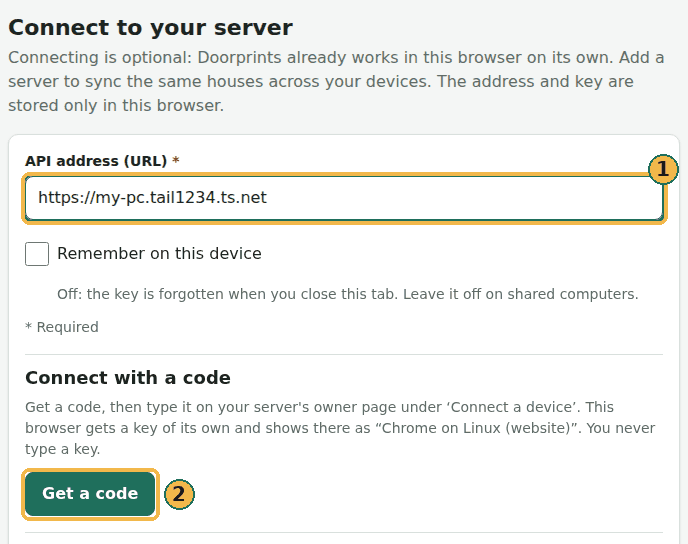
The address in the picture is only an example. Use your own from step 7.
On the server computer itself, there is a shortcut for the website: on the owner page, choose Make a QR code, then Open the website connected to this server. The website asks once whether to connect, and connects.
Connect your own server shows the screens. Keep Tailscale switched on on your phone whenever you want to sync.
AI is off for each new device until you turn it on, in two places, so nobody uses your Gemini allowance without you knowing:
- on your owner page, under Devices, tick AI for that device;
- in the app itself: on the website, on the Connect page, under AI features, tick Use AI features in this browser; on a phone, in Settings under Server, turn on Use AI features on this phone. It says there what is sent to Google.
Then you will see Ask and Plan in the website's menu, and the Assistant tab on a phone.
Everyday use
- After the computer restarts: open Docker Desktop. Then open a terminal in doorprints-main and run
docker compose up -d. To save one step next time, turn on Start Docker Desktop when you sign in to your computer in Docker Desktop's settings. (You still need to run the command.) - To turn AI on or off later: use AI on this server on your owner page (step 8). To turn AI off for good,
change the lines in
.env(step 5), save, and rundocker compose up -dagain. -
To update the server: first choose Save a copy in one of the apps (see Your data). Then:
- run
docker compose stopin doorprints-main; - download the new ZIP and unzip it somewhere else, for example your Downloads folder;
- copy your
.envfile from the old doorprints-main into the new folder (the one with docker-compose.yml). On a Mac, files whose names start with a dot are hidden. Press Cmd + Shift + . in Finder to see them; - rename the old folder to doorprints-old. Move the new folder into Documents and name it doorprints-main;
- open a terminal in the new doorprints-main and run
docker compose up --build -d.
When everything works, you can delete doorprints-old.
- run
-
To stop the server: run
docker compose stop. Your houses stay on the computer.
Sharing your list with someone you trust
The other person needs two things:
- access to your server in Tailscale. In the Tailscale admin console (its settings website), open Machines. Choose the server computer, then Share, and send them the invite;
- your server's address.
Then they connect their own phone or browser with a code, and you approve it on your owner page (step 9). You don't give them your Doorprints API key. Their device appears under Devices on your owner page: you choose whether it may use AI (and so your Gemini allowance), and Revoke takes it back at any time.
A connected device can read and change every house on the server. Approve only someone you'd give your house keys to.
Sharing a computer in Tailscale shares all of it
The other person can reach anything else that computer shares on the network, not only Doorprints. For example, shared folders or Remote Desktop. Share only with someone you trust with that computer, or turn those features off first.
If something goes wrong
First, see what the server says about the problem. These messages are called logs. In Docker Desktop, open
Containers, then doorprints-main, then the api container, and read its Logs. (Or run
docker compose logs api in the terminal.)
| What you see | What to do |
|---|---|
no configuration file provided |
The terminal is in the wrong folder. Open it in the folder that has docker-compose.yml in it (step 2). |
Set APP_API_KEY to a random secret… when you start the server |
The .env file is missing, in the wrong folder, or has no APP_API_KEY line. Check that its name is exactly .env and that it is in doorprints-main. |
| The server starts and then stops again | Read the logs (above). Most often, the key is shorter than 32 characters. Make a new one (step 3). Put it in .env and in the apps. |
docker: command not found, The term 'docker' is not recognized, or the command doesn't work at all |
Docker Desktop is not running. Open it, wait for Engine running, and try again. |
| Save and test (Android) or Test connection (website) fails | One of these: Tailscale is off on the phone; the server computer is asleep or off; or the address doesn't start with https://. To check, open the /actuator/health address on the phone (step 7). |
| The phone connects but the website doesn't | Check that the APP_CORS_ORIGINS line in .env is exactly https://doorprints.web.app. Then run docker compose up -d. Make sure Tailscale is on for that computer too. If the browser asks to allow access to devices on your network, choose Allow. |
| Ask, Plan or Assistant don't appear | .env needs APP_AI_ENABLED=true (after a change, run docker compose up -d). Then check three things: a Gemini key is saved on the owner page (or in AI_API_KEY); AI on this server is on; and AI is ticked for that device under Devices. In the app, also turn on Use AI features in this browser (website, Connect page) or Use AI features on this phone (phone, Settings). |
| Get a code says the server cannot connect by code yet | The server is older than this guide. Update it (see Everyday use), or open Use an API key instead and type your Doorprints API key. |
| The owner page link no longer works | It works only once, within an hour. If no browser has signed in yet, restart the server with docker compose restart api and use the new link in the logs. If one has, the logs hold no link: in that browser, open the owner page and choose Add another browser. If you no longer have that browser, use the recovery at the end of step 8 (OWNER_SETUP_LINK_IN_LOG=true). |
tailscale is not recognized, or command not found |
Windows: open a new terminal after installing Tailscale. Mac: use the longer form in step 7. |
| AI answers fail after working earlier | You have probably reached the free daily limit. Try again the next day. |
| All your houses are gone from the server | The folder was renamed or moved (see step 2). Move it back. Or, on Android, use Import a backup with your latest copy, then Sync now. |
Other ways to run a server
You can also run the server on a free cloud service (someone else's computer on the internet), with a free database. Then it doesn't need your computer to be on. This needs more technical setup. It also puts your server on the public internet, so read the security notes there first. The steps are in the project's deployment notes.