Your houses
About this page: written for houses
This page describes houses, what Doorprints keeps track of by default. If you also track schools (What you track, Experimental: more than houses), a school has other fields: see More than houses (experimental).
Add your first house
On the website
- On Map, choose Add house.
- Show where the house is. Either choose that spot on the map, or move the map until the cross is on it and choose Place here.
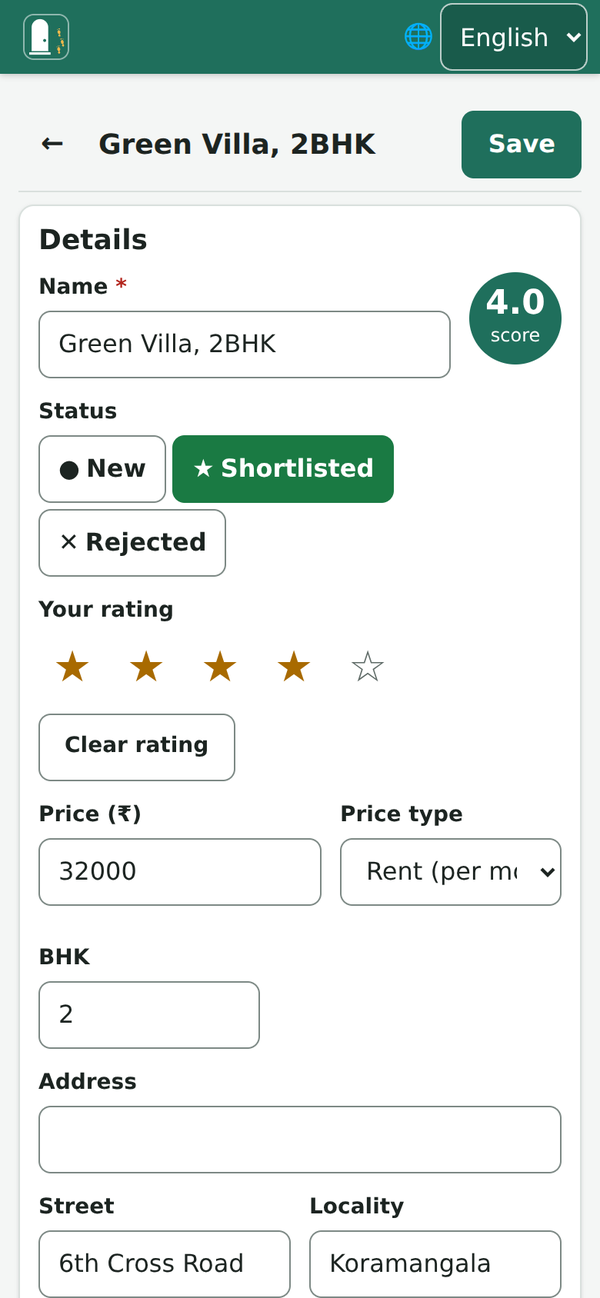
- The New house form opens. Type a Name, for example "2BHK near the park". You can leave everything else empty.
- Choose Add house at the top right.
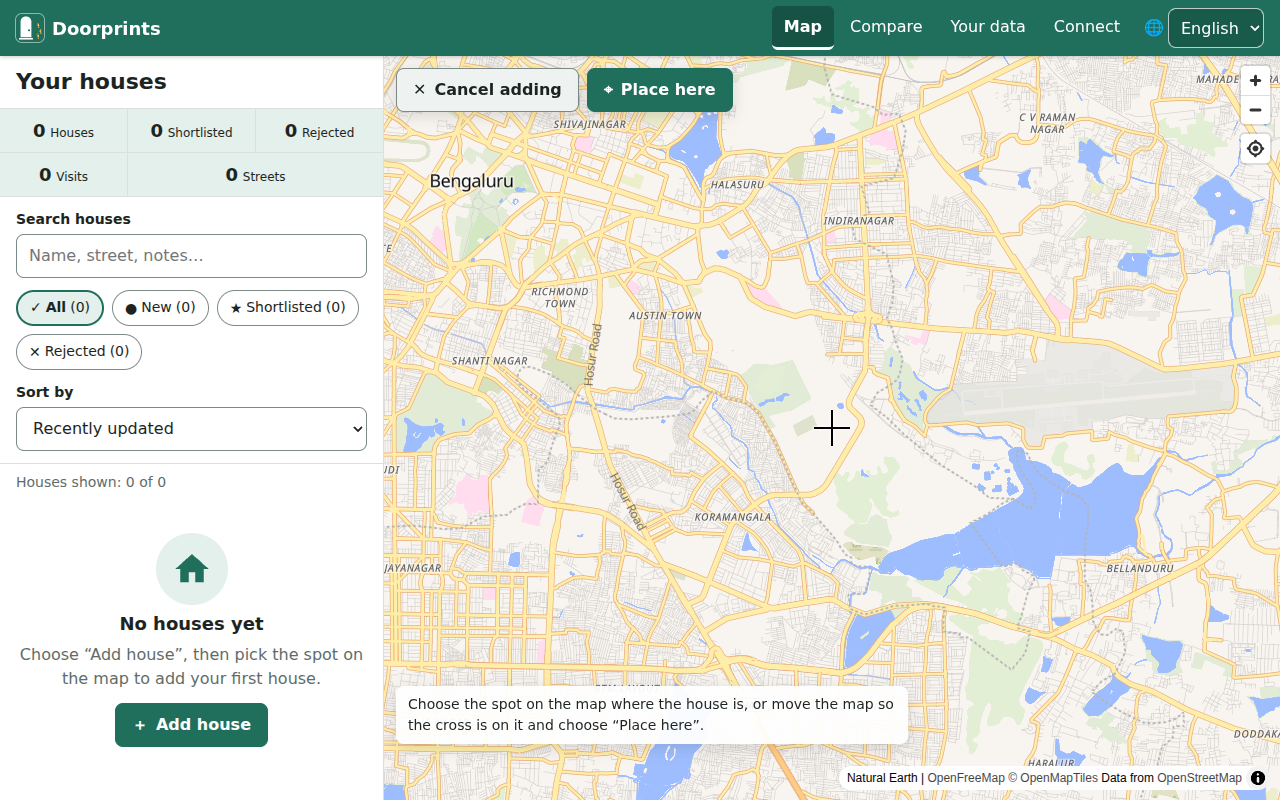
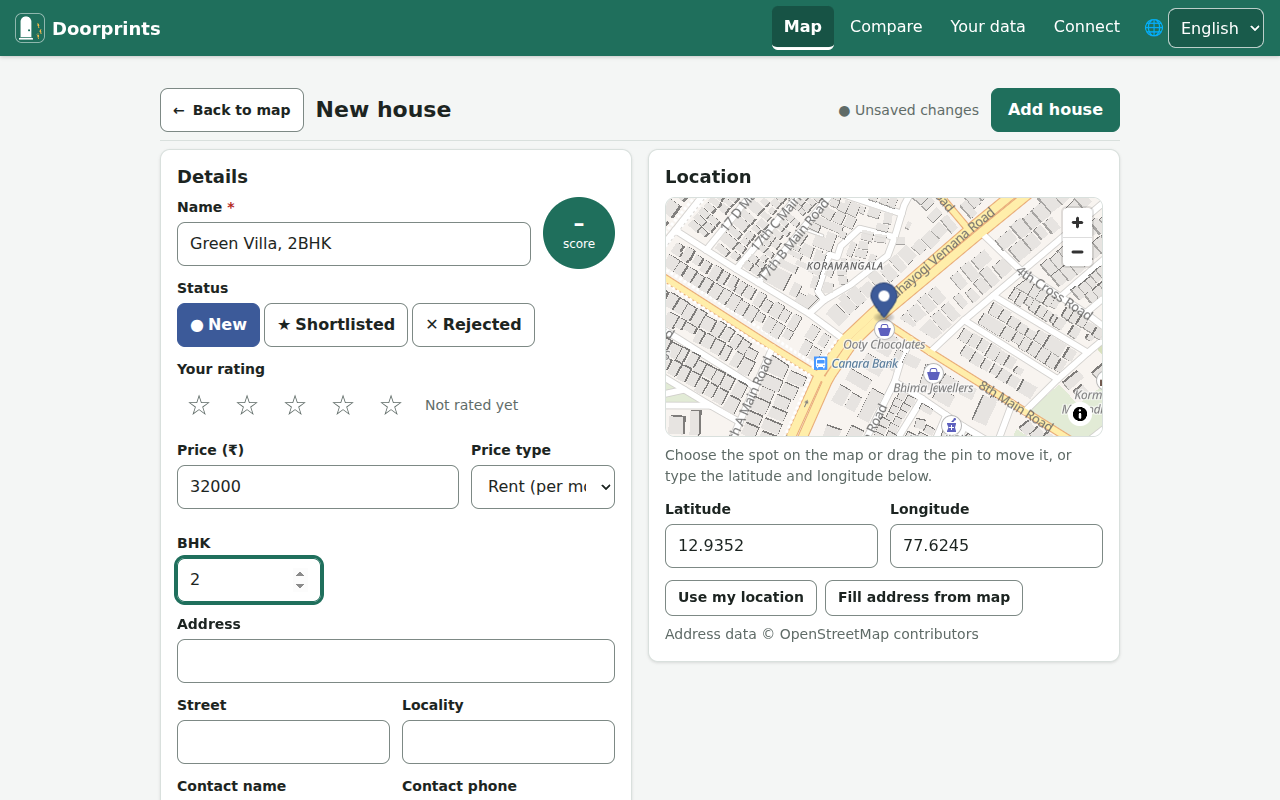
You can move the house's pin later in three ways:
- drag the pin on the small map;
- type the Latitude and Longitude (the two numbers that mark a spot on the map);
- choose Use my location.
Fill address from map fills in the street and locality for you.
On Android
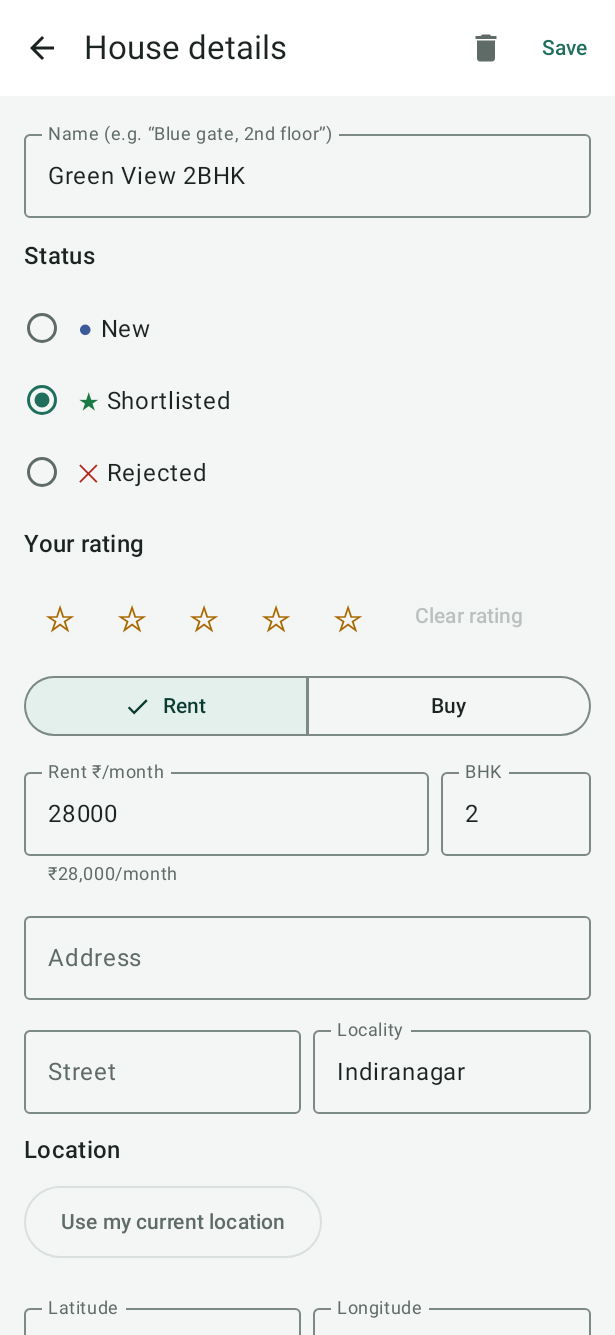
- Stand at the house and tap Save house here on the Map. Or press and hold any spot on the map.
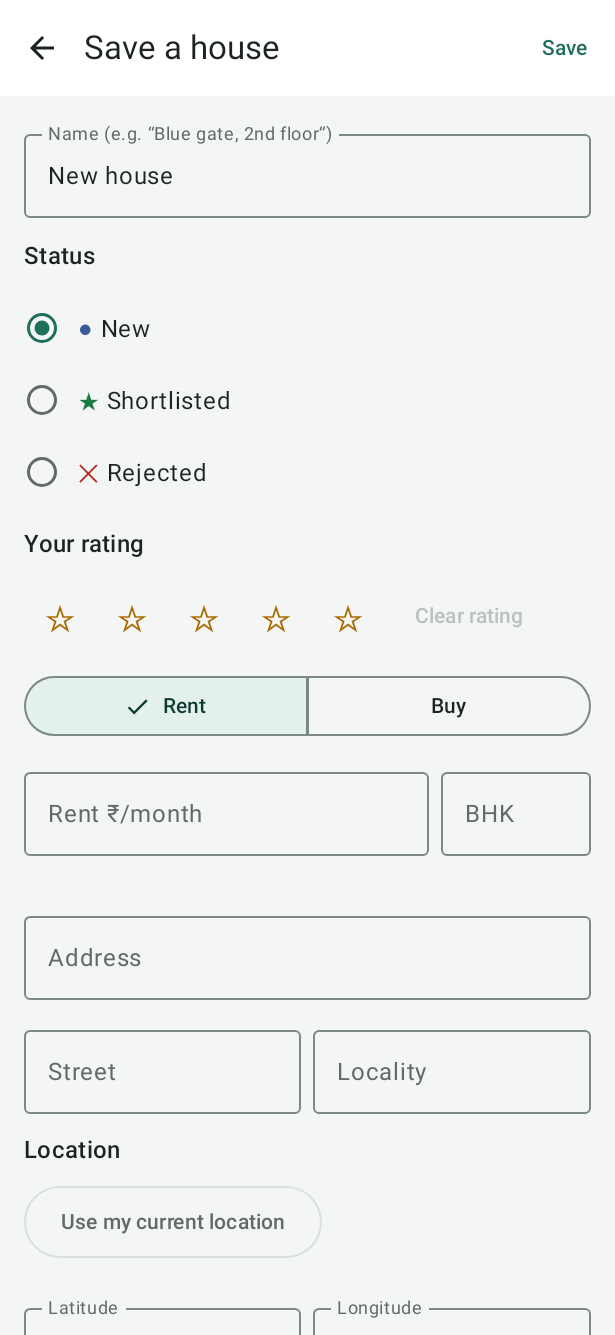
- The Save a house form opens. The place is already set.
- Type a name.
- Tap Save.
Add a house from a listing you found online
In the portal's app or your browser, share the listing to Doorprints (on Android, from the share sheet; on the website, once it is installed as an app). Doorprints asks where the house is: tap Save house here if you are standing at it, or press and hold the map on the spot. The form then opens with what the listing said, such as the price, the number of bedrooms, the area name, the link and a phone number, and the whole text in the notes for you to check. Nothing is fetched from the portal's site, and nothing is saved until you tap Save. If you shared the same listing before, Doorprints offers to open the house you already have.
If the listing names the area, Find "" on the map takes you roughly there; then put the house on its exact spot. The lookup asks the phone's address finder (on the website, OpenStreetMap's) only when you tap it.
Keep notes on a house
Open a house from the list or the map. There you can:
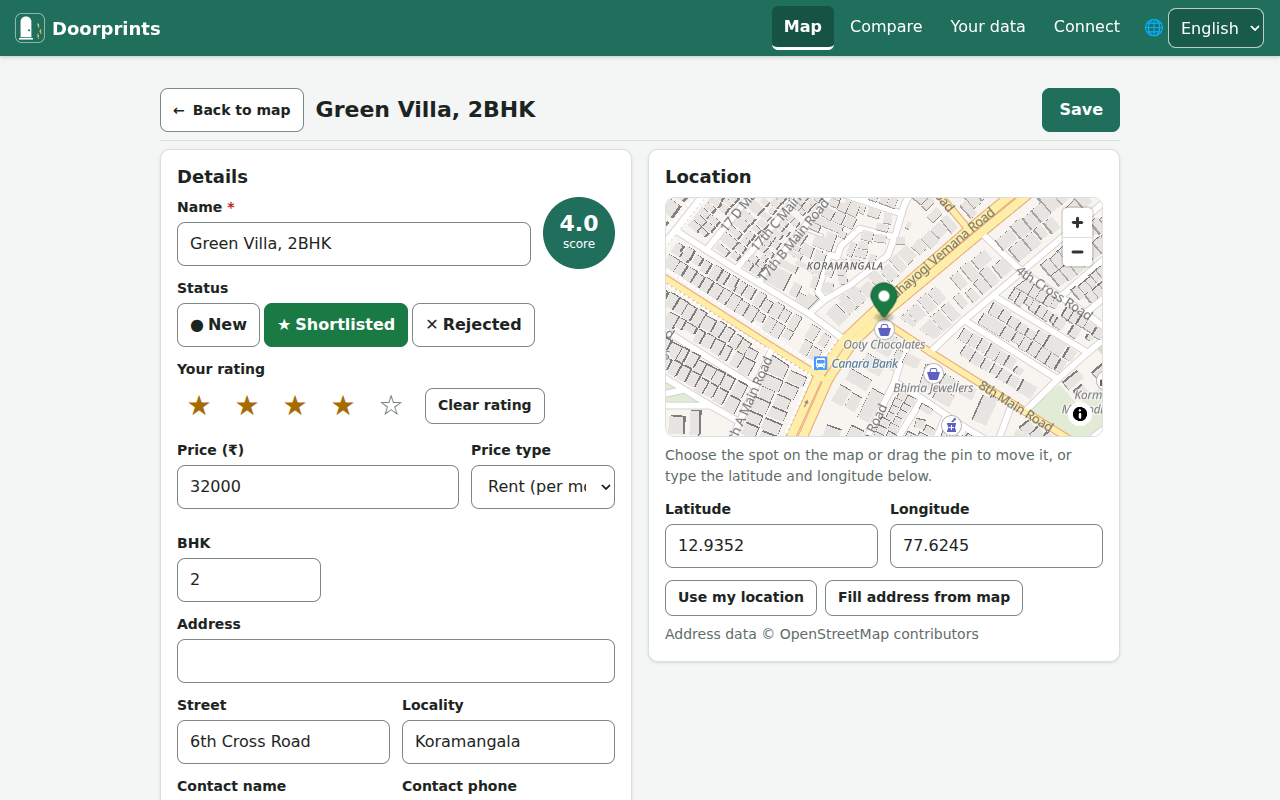
- set the Status: New, Shortlisted, Rejected, Taken (the house you chose) or Not chosen (see Moving in);
- give Your rating, from one to five stars;
- fill in the price, BHK, Carpet area, the Floor (0 is the ground floor; for a basement turn on Basement and type the level, 1 to 5), address, contact and Listing link (the web address of an advert for the house). If another saved house is within about 30 m with the same BHK and floor, Doorprints says it may be the same flat (two brokers often show the same one);
- under Cost, what the advert does not say at first: the deposit (in rupees or months of rent), the maintenance and whether the rent includes it, the brokerage, the lock-in and notice periods, the date the house is free from, your offer and the price you agreed. Doorprints then shows the monthly cost, the money to move in and the cost per sq ft, and Compare lines them up across houses;
- turn on Approximate location when you only know the area, not the building: the house shows as a hollow ring on the map and Hunt mode will not alert you there until you fix the spot;
- see or change the house's Broker: the person who showed it. Saving a house with a phone number adds that person to Settings > Brokers (on the website, Your data > Brokers), where each broker has an agency, fee terms, notes, a rating, a Call button and a list of the houses they showed you;
- add up to 30 Rooms: for each, its type, name, length and width, a condition from one to five stars and a note. Doorprints shows each room's area and the total; Move up and Move down change their order; switch between feet and metres with Length units in Settings (on the website, on Your data);
- keep a list of Questions to ask at the viewing: Add the usual questions brings the standard ones that fit the house (for a rent: maintenance, deposit, brokerage, lock-in, water, power, parking, floor) and fills in what you already noted under Cost; write the answer as you hear it, or Skip one. Change the standard list, or add your own, in Settings > Questions (on the website, Your data > Questions to ask);
- Plan a viewing from the house's Viewings card: pick the day and time, how long, whether it is the first or a second visit, and whom you meet. Add to calendar puts it in your calendar; all of them are listed under Viewings (in Settings; on the website, on Your data), where a viewing that passed without being marked shows as Missed?. Choose Reminder in the form to be told before it starts (on the phone; on the website only while the site is open, so use Add to calendar there). On the phone you can also switch on Offer Hunt mode before this viewing; shortly before it starts Doorprints asks whether to start Hunt mode (you always decide). After a viewing, Mark viewing done and, if you like, book a second one;
- see its Distances to the places you saved under My places, and the Area notes that cover it (write one for its street or for an area you saved under My areas; see Your areas and places);
- write Notes;
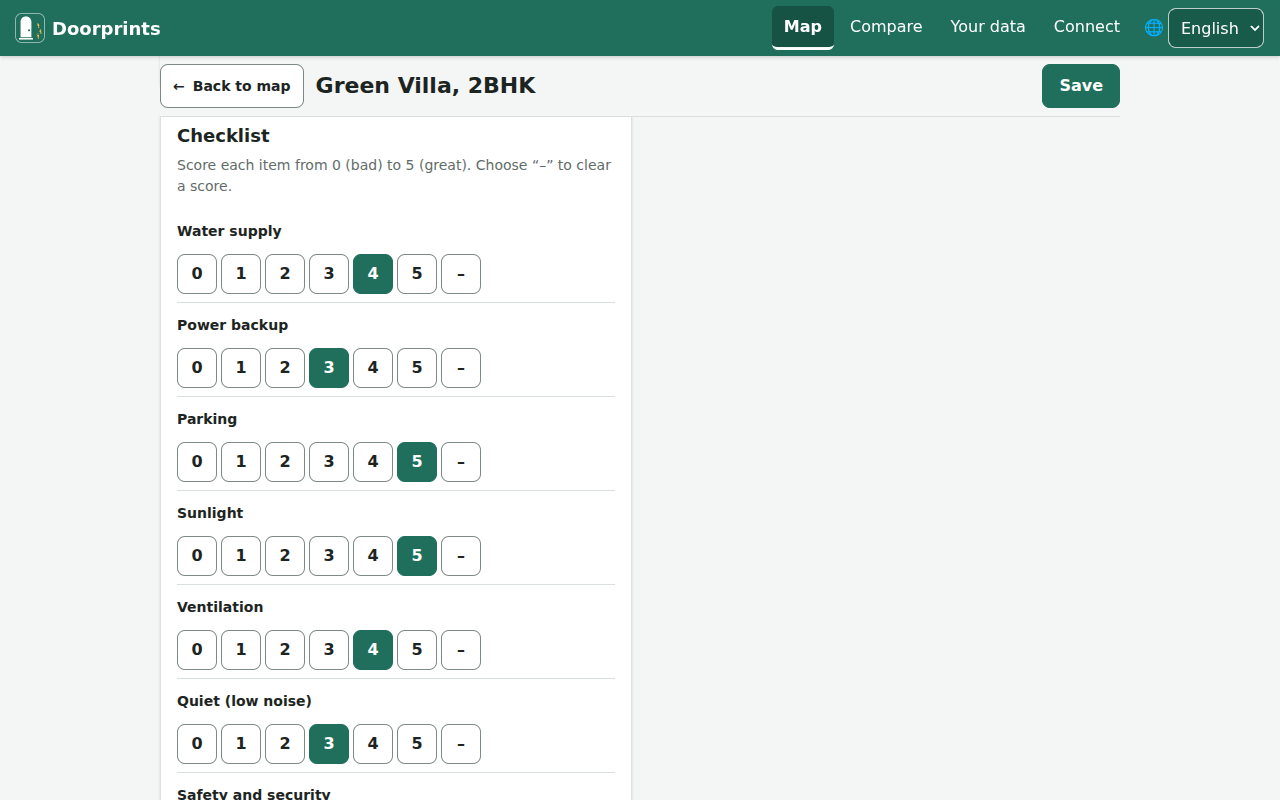
- score each Checklist item from 0 (bad) to 5 (great);
- note that you visited: Mark visited now on the website, I am here now on Android;
- add photos: Add photos on the website, Take photo or From gallery on Android. Save the house first. Each photo's Details (on Android Room, tags and caption) say which room it shows, add tags such as Damp, Crack, Meter or your own words (up to ten), and a caption.
Doorprints gives each house an overall score out of 5. It works this out from your rating and the checklist. Open Settings > Criteria (on the website, Your data > Criteria) to choose what matters: set each item to Ignore, Low, Medium or High, mark must-haves with a minimum score, add your own items and choose how much your star rating counts. A house that misses a must-have is marked and listed after the others. Remember to choose Save.
Delete house removes a house with its notes, contact details and photos. Its visits stay in your history. On the website there is no question: a bar at the bottom says Deleted and offers Undo for 10 seconds (press Shift+Tab from the top of the page to reach it with the keyboard). If the house has saved walks, one question tells you how many go with it, because they cannot come back. Later, Your data > Recently deleted lists what you deleted in the last 30 days, and Restore brings it back. Deleting drops a photo from the device at once, but its encrypted copy stays in your own Google Drive for at least 30 days, so Restore can bring the photos back too: when Google Drive is connected on that device and you are online, the page says how many of how many came back and why the others did not (Drive not connected, no connection, deleted more than 30 days ago, no copy left in your Drive). Connect Google Drive and go online before you press Restore; the house itself always comes back. Delete everything Doorprints keeps in my Google Drive removes those copies for good. On the Android and iPhone apps the same list is in Settings > Recently deleted (for the space you are in), and a phone does not remove a house's photos when you delete it, so Restore brings them back; photos that another device deleted with the house are read back from your Drive.
Your areas and places
On the phones these are in Settings; on the website, on Your data.
- My areas are the neighbourhoods you are hunting in, up to 20. Choose Add area (on the website Add an area), give it a name, set its middle (your location, a spot on the map, or the latitude and longitude) and a Radius. Wake me here lets the phone tell you when you arrive there (see Wake me in my hunting areas).
- My places are the places you go to often, such as work, school or family, up to 10. Choose Add place (on the website Add a place). Every house then shows its Distances to them, in a straight line, with a walking time, and Compare lines them up.
- Area notes: on a house, under Area notes, choose Add a note for this street or Add a note for an area. The note then shows on every house on that street or inside that area, and search finds it.
Moving in
When you have chosen a house, set its status to Taken. Only one house can be Taken: choosing another puts the first back to Shortlisted. Doorprints then asks Mark the other houses Not chosen?: Mark them Not chosen or Keep them. Nothing is deleted either way.
A Taken house has a Moving in card:
- Start moving in adds the usual checklist in your language: the rental agreement signed and registered, police verification, ID copies exchanged, the deposit receipt, the meter readings and the keys. Tick each one when it is done, change or remove it, or add your own (up to 30);
- the Move-in date and Move-in notes;
- the Condition record: the photos tagged Move-in, by room, with their date and caption, to keep for when the deposit is returned. Add a photo takes one with the Move-in tag already chosen.
Close this hunt marks all the other houses you have not rejected as Not chosen and offers to Save a copy of everything. Your houses stay in Doorprints.
Find a house again
- Type in Search houses (on Android: Search name, street, notes). The list gets shorter as you type.
- To show only some houses, tap a status chip (a small button), such as Shortlisted.
- To set a price range, open Filter by cost (on Android under Filters): the monthly cost, the money to move in, or the cost per sq ft, from and up to an amount in rupees. A house whose number is not known is left out while a range is set. Clear cost filters shows them all again.
- To put the best score or the lowest price first, use Sort by.
The search looks at the name, address, street, locality, notes and contact name, and also at the broker, the rooms, the answers to your questions, the area notes, the move-in list and the floor (type "floor 3", "ground floor" or "basement 1", or the same words in the app's language).
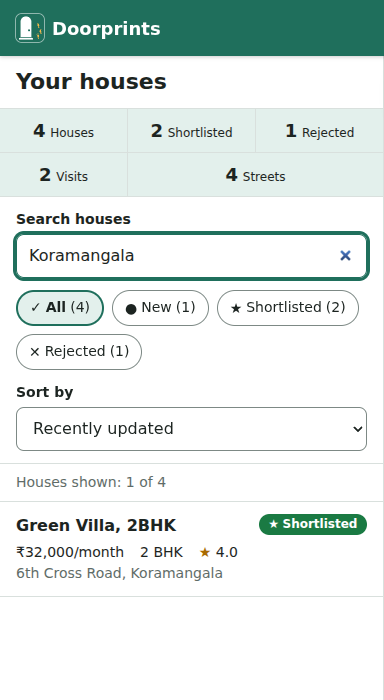
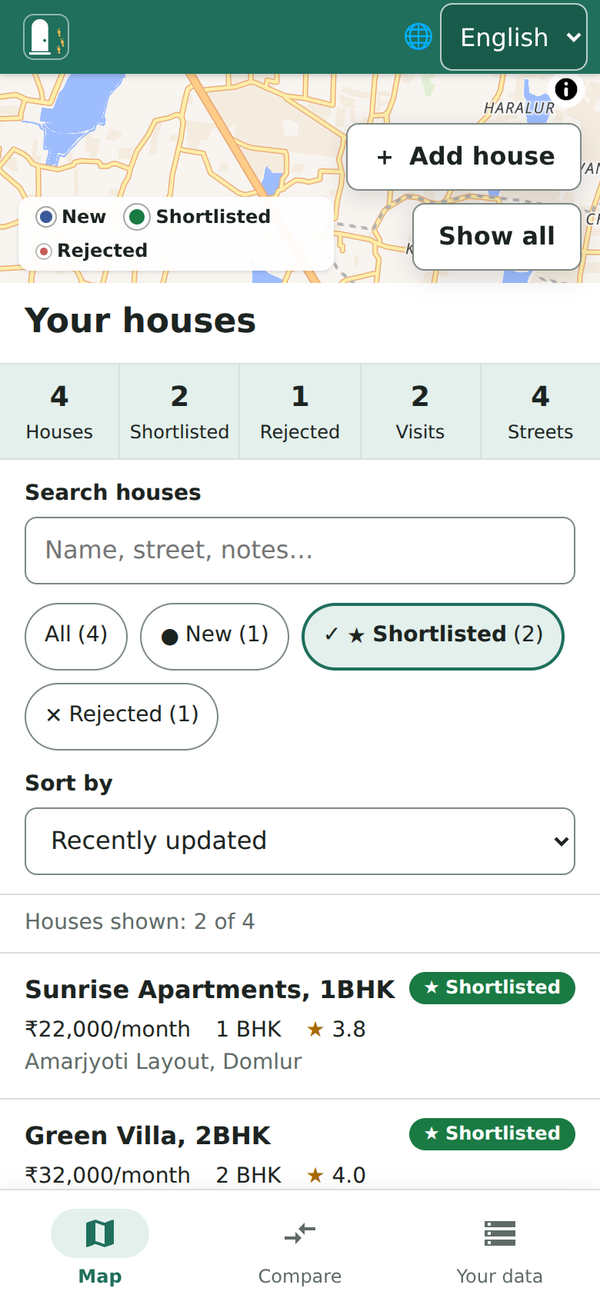
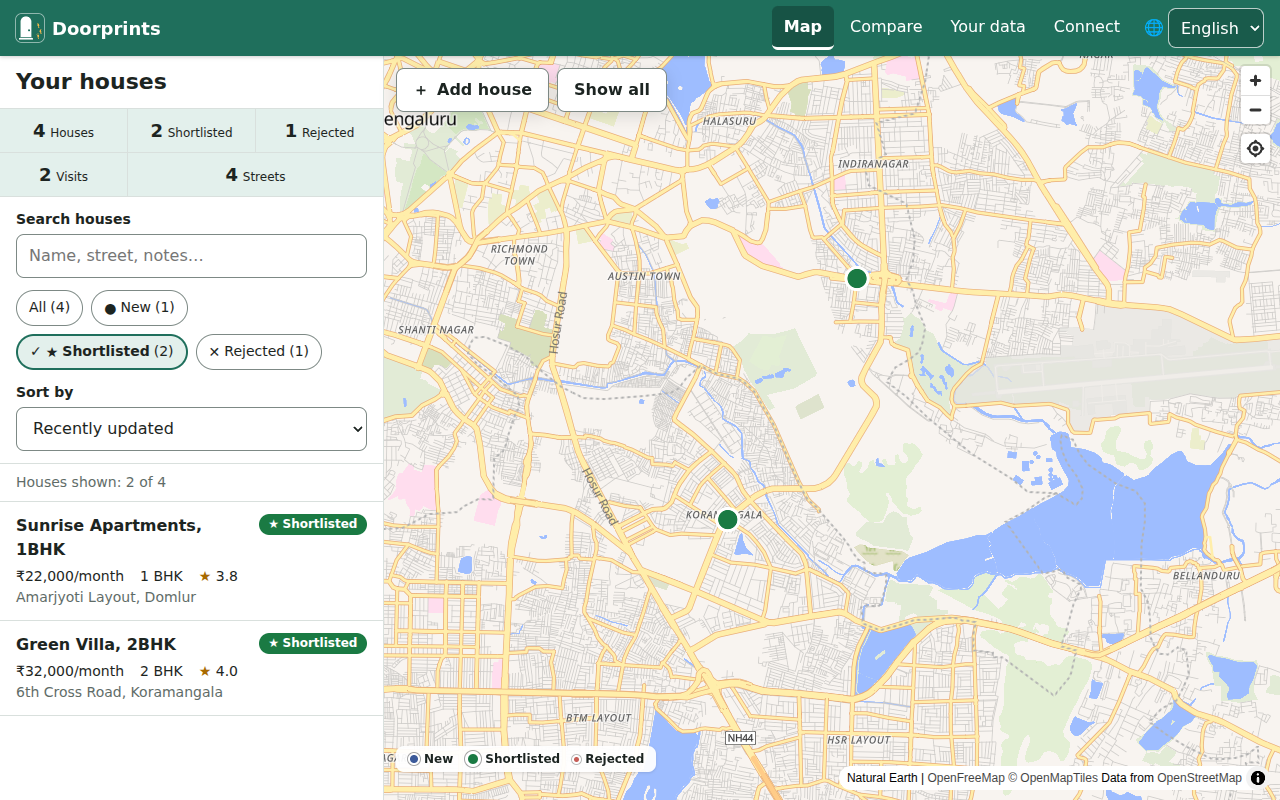
If no house matches, choose Clear search and filter.