Server and sharing
Connect your own server (optional)
Doorprints works fully without a server. A server is a computer you own that keeps a copy of your houses. With one, you get two extras:
- Sync: the same houses on your phone and in your browser.
- AI features, if the server's owner set them up.
Doorprints does not run a public server. You, or someone you trust, run one on a home computer. Set up your own server walks you through it step by step. No programming is needed.
To connect, you need the server's address, like a website address. Then:
- the app shows a short code, and the server's owner approves it on their owner page; or, on a phone, you scan a QR code from the owner page. No password to type.
The AI has its own key (the Gemini key). It stays on the server; the apps never ask for it.
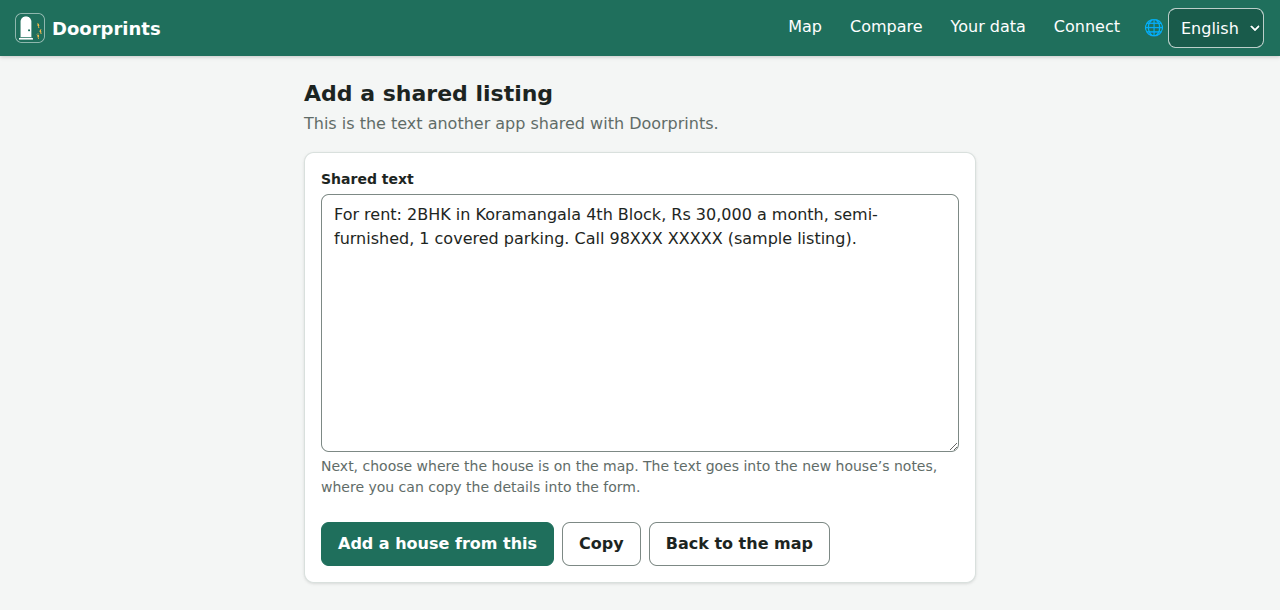
On the website:
- Open Connect and fill in API address (URL).
- Choose Get a code. The website shows a code like
K7MQ-4XRD. - The server's owner types that code on their owner page and chooses Approve (how).
- A few seconds later the website says it is connected.
On a shared computer, leave Remember on this device off. For an older server that has no codes yet, open Use an API key instead, fill in API key, and choose Save and continue.
AI on the website stays off until you turn it on: on the Connect page, under AI features, tick Use AI features in this browser. It says there what is sent to Google. The server's owner also has to turn on AI for your browser.
On Android and iPhone:
- With a QR code: point the camera at the QR code on the server's owner page and tap the link. The app asks Connect to a server? and shows the address. Check it, then tap Connect.
- With a code: open Settings, find Server (optional), fill in Server URL and tap Get a code. The server's owner types the code on their owner page and approves it.
- For an older server that has no codes yet, tap Use an API key instead, fill in API key and tap Save and test.
AI on a phone stays off until you turn on Use AI features on this phone in Settings, under the server. The server's owner also has to turn on AI for your phone.
Sync now syncs straight away. On Android, Photos only on Wi-Fi saves mobile data.
The address must start with https://. (HTTPS means the connection is locked, so no one on the way can read it.)
Disconnect on the website forgets the address and key on that device.
Add a shared listing
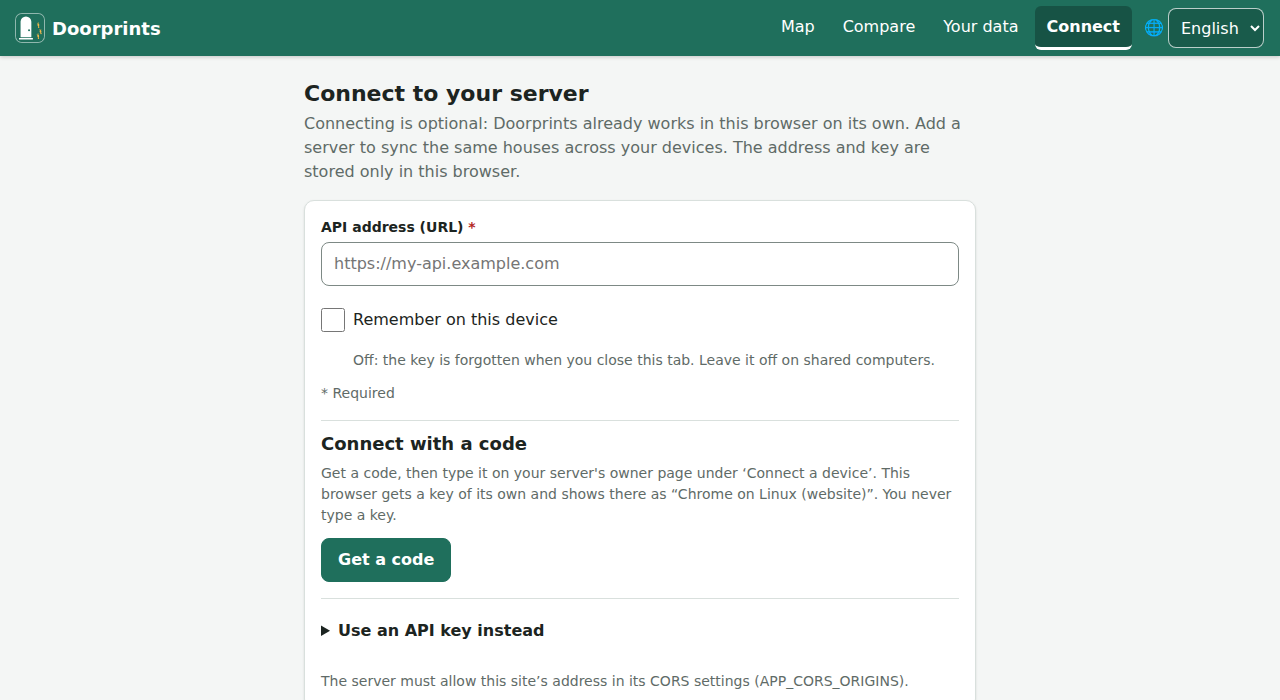
Saw a good ad on WhatsApp or a website? Keep its text with a new house. On Android, and on the website installed as an app, the new house's form also fills in what the listing says (see Add a house from a listing you found online).
Website installed as an app on an Android phone:
- In the other app, choose Share, then Doorprints. The Add a shared listing page shows the text.
- Choose Add a house from this.
- Pick the spot on the map. The text goes into the new house's Notes.
To install the website, see Install the app on Your data.
Anywhere, also on iPhone: paste the ad's text into a house's Notes. With AI turned on, Fill in from listing
text on the form for a new house suggests the details. Check them before you save. It reads the first 8,000
characters of what you paste; a line under the box says how many at the end are left out. If the text holds more
than one web link, the form tells you to check that the Listing link is the right one. What it put in your notes sits
between the lines --- from listing --- and --- end of listing ---, so reading the text again replaces that part and
never doubles it; the fields it filled are listed as From the listing until you edit them; and Undo fill puts the
form back as it was. If the rupee amount in the text and the AI's price differ, the form says so and asks you to check.