The screen at a glance
Website
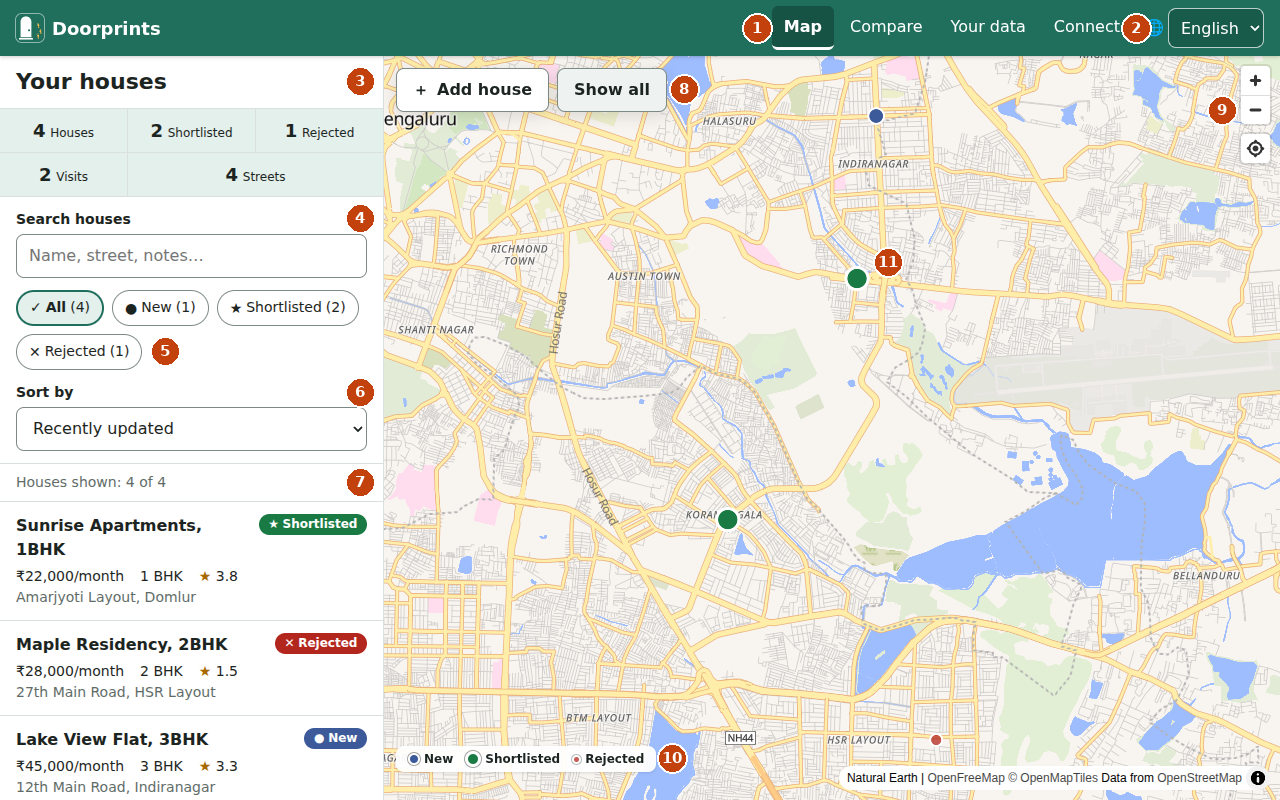
- Menu: Map, Compare, Your data and Connect. Ask and Plan show here once you turn on AI features (see AI without a server).
- Language: English, हिन्दी, தமிழ், తెలుగు.
- Your houses: how many houses, shortlisted houses, rejected houses, visits and streets you have.
- Search houses: type part of a name, street, locality or note.
- Status filter: show All, New, Shortlisted, Rejected, Taken or Not chosen houses. Each shows how many houses it has.
- Sort by: put the list in order by Recently updated, Best score or Lowest price.
- The house list. It says how many houses are shown. Choose a house to open it.
- Add house starts adding a house. Show all moves the map so you can see every house.
- Zoom in, Zoom out and Show my location.
- The colour key: blue is New, green is Shortlisted, red is Rejected, amber is Taken and grey is Not chosen.
- A house on the map. Choose its pin (the coloured marker) to open that house.
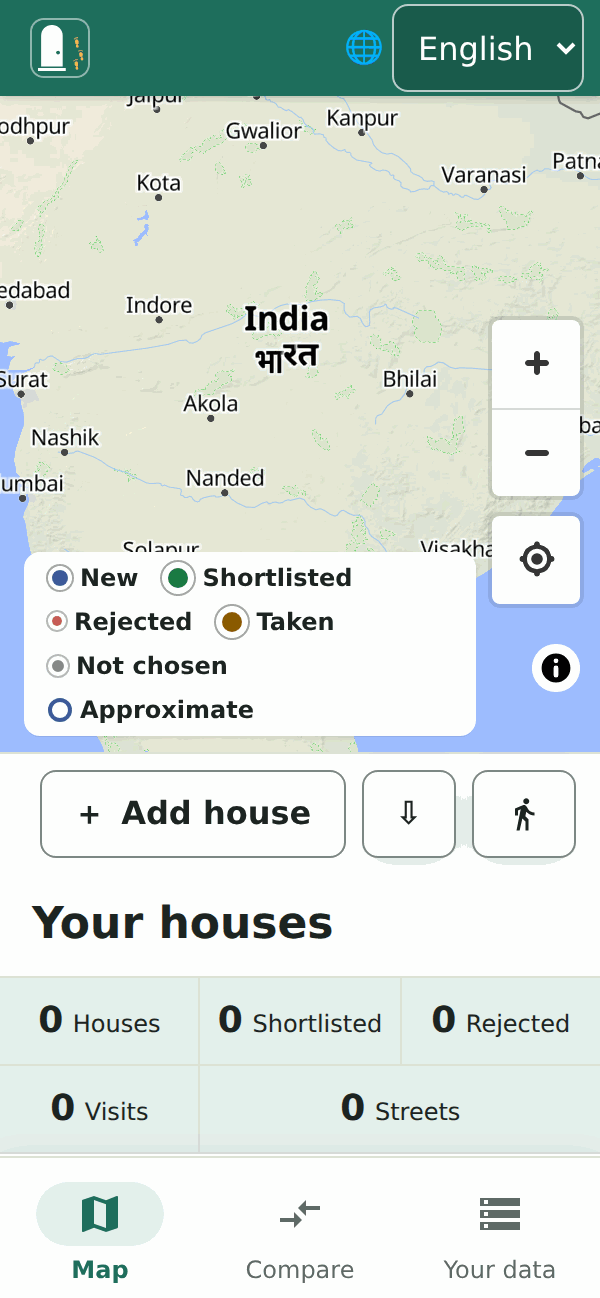
On a phone, the same page puts the map above the list. The menu moves to a bar at the bottom: Map, Compare and Your data. Connect is inside Your data.
Android
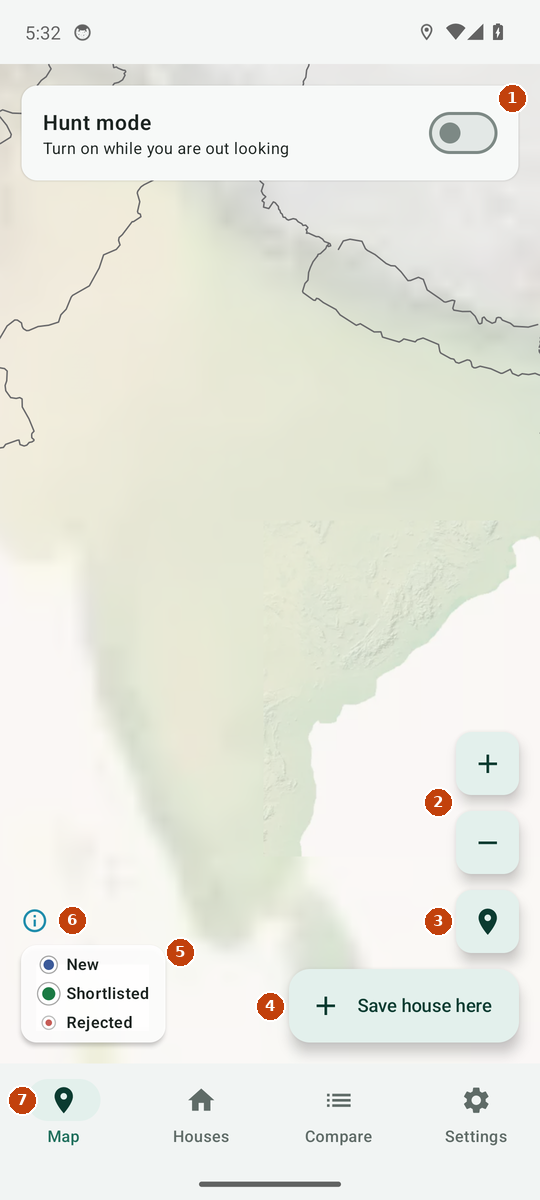
- Hunt mode: turn it on while you are out looking (see Hunt mode).
- Zoom in and Zoom out.
- My location.
- Save house here saves a house at the spot where you are standing. You can also press and hold the map anywhere.
- The colour key: New, Shortlisted, Rejected, Taken, Not chosen.
- Map credits (who made the map).
- The tabs: Map, Houses, Compare and Settings. An Assistant tab shows once you turn on AI features, through your server or with your own key for the AI provider you chose.
This picture was taken by an automatic test on a pretend phone on a computer. That pretend phone does not show place names. On a real phone, the map has place names and shows your houses as coloured pins, like the website's map.
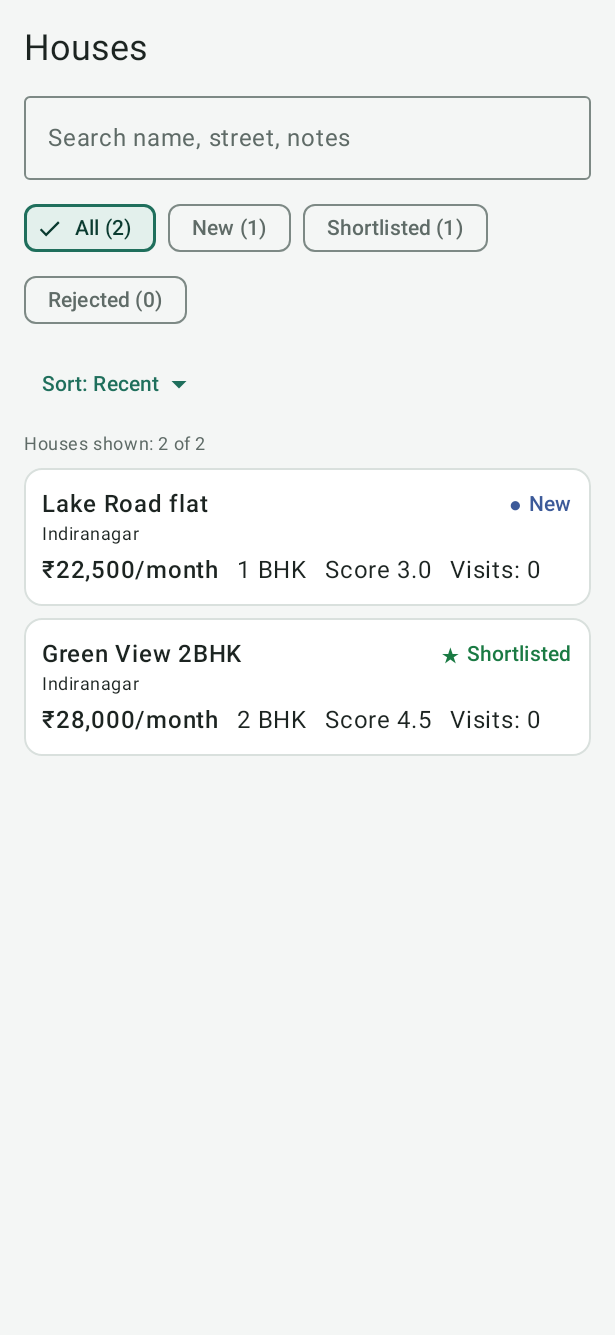
The Houses tab is the list:
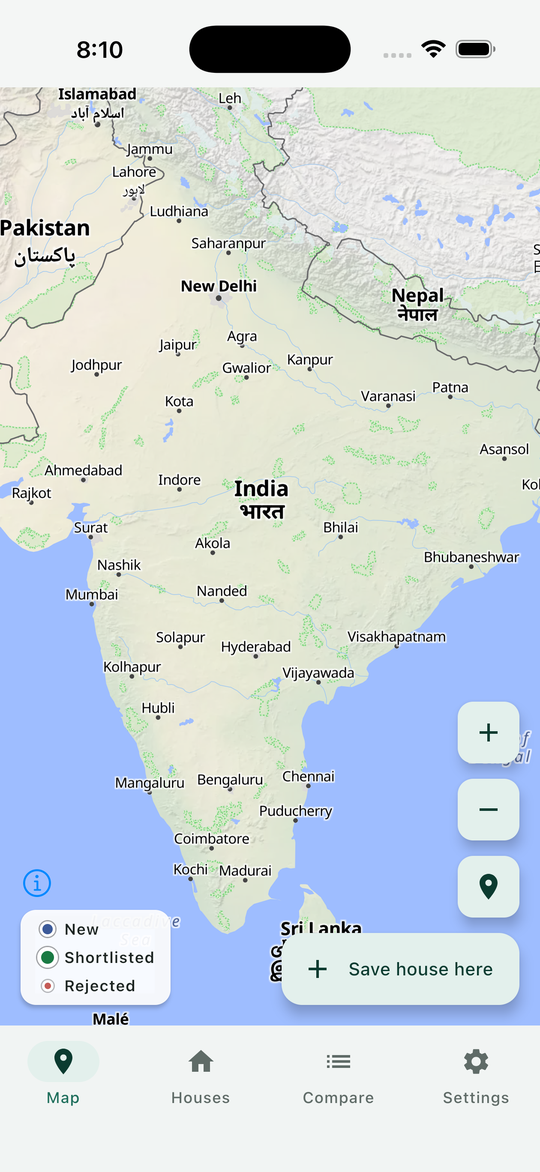
iPhone
The iPhone app is an early version. It opens on the Map, which works as on Android:
- tap Save house here to add a house where you stand;
- or touch and hold the map to add a house anywhere.
The tabs are Map, Houses, Compare and Settings. It has Hunt mode, offline areas, Save a copy (every format but PDF, through the share sheet or Files) and Import a backup (from Files, or a file another app opens in Doorprints). It cannot add photos yet. To see the houses you added on other devices, import a backup from them or connect your own server in Settings.
Take the tour (Android and iPhone)
The first time you open the Map, a card offers Take the tour: a short walk through every part of the app, one step at a time, over the real screens. Each step dims the screen, leaves one control bright (such as Save house here, Hunt mode, Have I been here?, the search box, Compare, Criteria, Save a copy or Help) and says what it is for and what to try. You can use the bright control right away, then choose Next. Back goes to the step before, and Skip tour (or the phone's Back) leaves at any point. Steps for things your phone does not have, such as the weekly backup on an iPhone, are left out. To see the tour again, open Settings, go to About and choose Take the tour, just under Help.