Language, theme and privacy
Language and theme
Doorprints speaks English, हिन्दी, தமிழ் and తెలుగు. The Hindi, Tamil and Telugu wording is still being reviewed.
- Website: pick the language in the menu at the top right.
- Android: open Settings, then Language. System default follows your phone's language.
- iPhone: Doorprints uses your iPhone's language. Open iPhone Settings lets you pick one just for Doorprints.
Light and dark themes follow your device's setting on all three.
Your privacy and the map
- Your houses, visits and photos stay in your browser or on your phone, and on your own server if you connect one. There is no Doorprints account and no advertising.
- The map pictures come from OpenFreeMap. On the website, Fill address from map and Find "" on the map ask OpenStreetMap's address service, only when you tap them. On the phones, street and place names come from the phone's built-in address finder (Google's on Android, Apple's on iPhone).
- The AI features send your question and the matching house notes to the AI provider you chose (its name is shown where you set it): through your server, or, with your own key, straight from your phone or browser. The contact names and phone numbers saved with a house are left out.
- Doorprints does not filter, censor or scan what you type or say. If the AI service itself declines a text, you see one short message and nothing is changed; the service's own words are not shown or kept.
- Hunt mode's location stays on your phone.
- India's boundaries on the map are shown as the Government of India depicts them.
Save an area of the map for offline
On the Map, zoom to the neighbourhood you are hunting in and tap the download button (the arrow into a tray, next to the zoom buttons). Doorprints tells you how much it will download (a neighbourhood is a few MB, a whole city a few tens of MB), warns you if you are on mobile data, and suggests a name. Tap Save. From then on that area draws down to street level with no network, your houses on it. The saved areas are in Settings under Offline maps, with their size, where you can delete one. An area that is too large is refused: zoom in and try again. Map data © OpenStreetMap contributors, tiles from OpenFreeMap.
On the website it works the same way: on the Map, choose Save this area for offline, check the size and the room left in the browser, and choose Save area. The saved areas are on Your data under Offline maps. They stay in this browser only; Remove all data removes them too.
Lock Doorprints on your phone
If you share your phone, or hand it to someone to show a house, you can make Doorprints ask for your phone's own screen lock (PIN, pattern, password, fingerprint or face) before it opens.
- Open Settings and find Privacy.
- Turn on Lock Doorprints. Your phone asks you to confirm it is you.
- Choose when it locks again after you leave it: Right away, 1 minute, 5 minutes or 15 minutes.
While the lock is on, Doorprints is hidden in the phone's list of recent apps. Doorprints keeps no PIN of its own, so there is nothing new to remember. Your phone needs a screen lock first: set one in the phone's settings. On Android, while the lock is on, Hunt mode's alerts show nothing on the phone's locked screen. The website has no lock; on a shared computer, use Remove all data on Your data when you are done.
AI without a server
You can use Ask, Plan and Fill in from listing text without running a server. Your phone or browser then asks an AI service itself, with a key of your own. You choose the service: Google Gemini (it has a free tier, with a daily limit and weaker privacy terms: see the warning at the end of this section), OpenAI, OpenRouter, Groq, Anthropic, a model on your own computer (Ollama or LM Studio), or any other service that speaks the same chat language.
Is AI worth it for me?
Doorprints works fully without AI: search, filters, Compare, backups, viewings and Hunt mode never need a key.
AI reads your own notes, which a search engine has never seen:
- Ask answers "which house had the best water, and when did I see it?" from your saved houses, with links.
- Fill in from listing text turns a pasted WhatsApp ad into a form you check before saving.
- Plan visits picks the saved houses that match your request and puts them in walking order.
It knows nothing about the market, the law or a locality; a search engine or general chatbot is better there. Ask says "I don't know" rather than guessing.
Worth it if you have more houses than you can hold in your head, write real notes and paste many ads. Not worth it if you track a handful of houses or keep little text.
Cost: about a rupee or a few per use on a paid key, in one table at list prices of October 2026. Google's free tier is free, with a daily limit; Google may read what you send.
Privacy: your question and the matching house notes go to the service you chose. Saved contact names, phones and emails are replaced first, as far as we can; a nickname or short local number can slip through. A pasted ad is sent as pasted.
The same three short sentences (what AI is for, what it costs, what it sends) are on the AI features card in the apps, with a link to this section.
Setup: one key, a few steps. What we check: What we test.
What it looks like
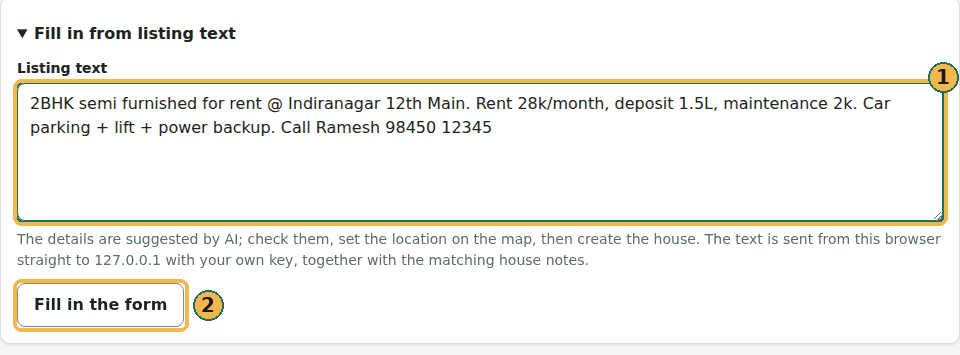
Fill in from listing text is on the form for a new house. Paste an ad (1) and choose Fill in the form (2):
The form then holds the AI's suggestions: the name (1) and the price (2) are filled in, with the BHK below. Check them, set the location on the map and save. A detail the ad does not give stays empty.
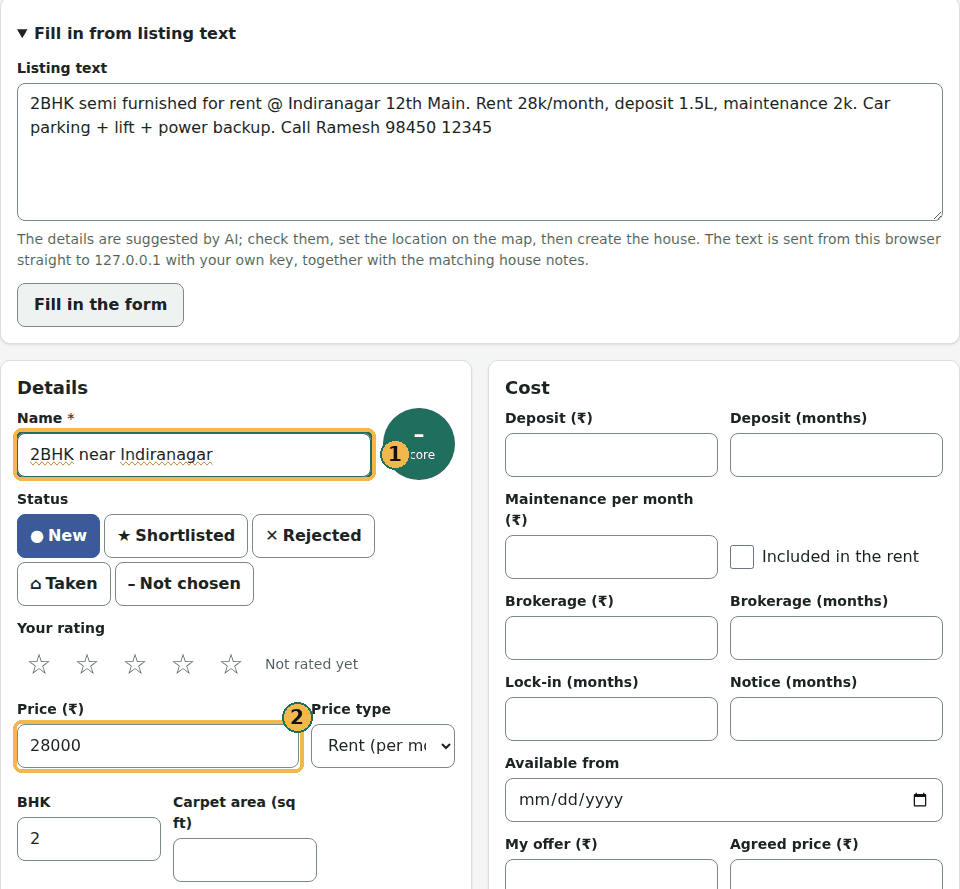
These pictures are an example answer, made with a made-up ad and a stand-in for the AI service on the same computer (no key, nothing sent anywhere); the words of the answer were scripted. What you get depends on the service and model you choose. For Ask and Plan see Compare and plan, and for what we test and what it costs, What we test.
On Android and iPhone
- Make a key with the service you want to use (a model on your own computer needs none). For Gemini, open Google AI Studio, sign in with a Google account and choose Create API key. Make one just for Doorprints, so you can delete it there at any time.
- In Doorprints, open Settings and find AI features.
- Turn on Use AI features on this phone. Read what it says is sent to an AI service.
- Choose Use my own AI on this phone, then pick your service under AI service.
- For Gemini, paste the key and tap Save key; Doorprints checks the key with Google first, then says Google
accepted this key. For any other service the Base URL is filled in (only Custom lets you change it: it must
start with
https://, or be on this device, such ashttp://localhost; the Android emulator may also usehttp://10.0.2.2). Type the Model exactly as the service lists it (for examplegpt-4o-mini), paste the API key and tap Save. Then tap Test: Doorprints says which host accepted the key, or what is wrong (the key was refused, the model is unknown, you reached the limit, or the host could not be reached). Anthropic works like the others, with its address filled in and fixed; it always needs a key, made in the Anthropic Console.
The key stays on your phone, locked (encrypted), and goes only to the service you chose: the address is written under the form, and again above every question you send. Test (Test key for Gemini) checks it again; Remove key forgets the key and your choice of service. If you also connect a server, you choose which one answers: Use my server or your own AI.
On the website
- Make a key with the service you want to use. For Gemini, use Google AI Studio, as in step 1 above. A model on your own computer needs no key.
- Open Your data, then Connect (on a computer, Connect is in the menu at the top).
- Under AI features, turn on Use AI features in this browser.
- Choose Use my own AI on this browser (with no server, it is already chosen), then pick your service under AI service.
- For Gemini, paste the key and select Save key; Doorprints checks the key with Google first. For any other
service, the Base URL is filled in (only Custom lets you change it: it must start with
https://, or be on this computer, such ashttp://localhost). Type the Model exactly as the service lists it (for examplegpt-4o-mini), paste the API key and select Save. Then select Test: Doorprints says which host accepted the key, or what is wrong (the key was refused, the model is unknown, you reached the limit, or the host could not be reached). Anthropic works like the others, with its address filled in and fixed; it always needs a key, made in the Anthropic Console.
The key stays in this browser and goes only to the service you chose: the address is written under the form, and again above every question you send. It is forgotten when you close the tab, unless you tick Remember on this device; leave that off on a shared computer. Remove key forgets the key and your choice of service; Remove all data on Your data also removes them.
Ollama and LM Studio on your own computer
The browser only lets this website talk to a program on your computer if that program allows it. For Ollama,
start it with OLLAMA_ORIGINS=https://doorprints.web.app set; in LM Studio, allow https://doorprints.web.app
in its server's CORS setting. Otherwise Test says it could not reach localhost.
AI speed and cost
On the website (the Connect page, under AI features) and in the Android and iPhone apps (Settings, then AI features), when you use Google Gemini with your own key, a group called AI speed and cost lets you choose how long the model thinks before it answers:
- Quality: the model's own default setting. Nothing is changed; this is what you get if you never touch the group.
- Balanced: thinks a medium amount, between Quality and Economy on speed and cost.
- Economy: in our tests about 40% cheaper and about twice as fast, with answers as good. "Our tests" are four full runs of the test list on one model (Gemini 3.5 Flash; three at Economy, one at the default), so treat it as a guide, not a promise.
Most of what a Gemini answer costs is the model's thinking, so a lower setting saves money on a key that has billing turned on. Your choice is kept on this browser or phone and applies at once, with no Save. It is only for Google Gemini keys: with any other service, or with AI features off, the group is not shown and nothing is sent (a choice you made stays saved). Remove key forgets the choice too. It works the same on the website and in the apps. The figures are from our own test runs, so yours may differ.
On the website, Your data also has a Privacy page link (privacy.html) and Back up to Google Drive.
See Back up to Google Drive.
Google's free tier
On the free tier, Google may use what you send to improve its products, and people may read it. Keep personal details out of your notes, or turn on billing for the key in Google AI Studio (see the paid tier).
Voice input (website)
On the website, a microphone button can sit under the boxes of Ask, Plan and Fill in from listing text. You tap it, speak, tap Stop, and the words are written into the box. You read and change them; nothing is sent to the AI until you press the box's own button (Ask, Plan route or Fill in the form).
It is off until you turn it on: on the Connect page, under AI features, tick Voice input. It works only with your own AI key, and only with a service that takes audio: Gemini, OpenAI, Groq or OpenRouter. It is not available when your server answers, with Anthropic, with a program on your computer, or with a custom address.
- Where the audio goes. A recording of up to a minute goes from this browser straight to the service you chose, which writes out the words. The page says the host and the price of a minute at the service's list price before you turn it on. The recording is not saved on your device, not in a backup, not in a copy, and not shared.
- Numbers and names are heard too. Anything you say, including a phone number or a name, is sent as audio, and Doorprints cannot leave it out the way it leaves out a contact typed in a house. If that matters, type instead.
- The microphone. Your browser asks the first time you tap the button. If you said no, allow the microphone for this site in the browser's site settings, or just type. Cancel, or the Escape key, throws a recording away; leaving the page or hiding the tab stops it. If the browser itself ends the recording (a call takes the microphone, a headset is changed), what you said so far is kept and written out, and the message says that the recording ended early.
Voice input (Android)
On Android, a microphone button can sit under the boxes of Ask, Plan visits and Fill in from listing text. You tap it, speak, tap Stop, and the words are written into the box. You read and change them; nothing is sent to the AI until you press the box's own button (Ask, Plan from my location or Fill in).
It is off until you turn it on: in Settings, under AI features, turn on Voice input (it shows once your own AI key is saved). It works only with your own AI key, and only with a service that takes audio: Gemini, OpenAI, Groq or OpenRouter. It is not available when your server answers, with Anthropic, with a program on your computer, or with a custom address; Settings then says why.
- Where the audio goes. A recording of up to a minute goes from the phone straight to the service you chose, which writes out the words. Settings says the host and the price of a minute at the service's list price before you turn it on. The recording is kept in the phone's memory only for that moment; it is not saved on the phone, not in a backup, not in a copy, and not shared.
- Numbers and names are heard too. Anything you say, including a phone number or a name, is sent as audio, and Doorprints cannot leave it out the way it leaves out a contact typed in a house. If that matters, type instead.
- The microphone. Doorprints does not ask for the microphone when you install it or open it. The first time you tap Speak, it says why, and then Android asks. If you said no, the box still works: type, or allow the microphone for Doorprints in the phone's settings (the button on the message opens them). Recording only runs while Doorprints is on the screen: switching to another app, locking the phone, a call, turning the phone round or pressing Cancel throws the recording away.
Voice input with Sarvam
Instead of your AI service, Sarvam (an Indian speech-to-text service, Sarvam AI) can write out your words. Under Voice input on the Connect page (website) or in Settings under AI features (Android and iPhone), choose Sarvam and paste your own Sarvam key (from dashboard.sarvam.ai). The Sarvam key is its own: it is kept apart from your AI key, only on this device, and it is never put in a backup, a copy, a sync file or a Drive file. Remove it with Remove Sarvam key. Sarvam also works when your server, Anthropic or a program on your computer answers the AI, because only the speech goes to Sarvam.
- Where the audio goes. A recording of up to 30 seconds goes straight to api.sarvam.ai, about INR 0.50 a minute at their list price. Numbers and names you say are sent as audio, as with the other services. The recording is not saved.
- Sarvam as a chat service. Sarvam is also in the AI service list for the AI itself (Ask, Plan, Fill in); that is a separate choice with its own key and has nothing to do with speech.
- Everything else is as above: off until you turn on Voice input, the words land in the box for you to check, nothing is sent until the box's own button, the microphone is asked for only when you tap it.
More than houses (experimental)
Your data on the website has one more section, What you track, with the switch Experimental: more than houses. It is off by default, and while it is off nothing in this guide changes. On, Doorprints can keep track of schools too: see More than houses (experimental).