Your data
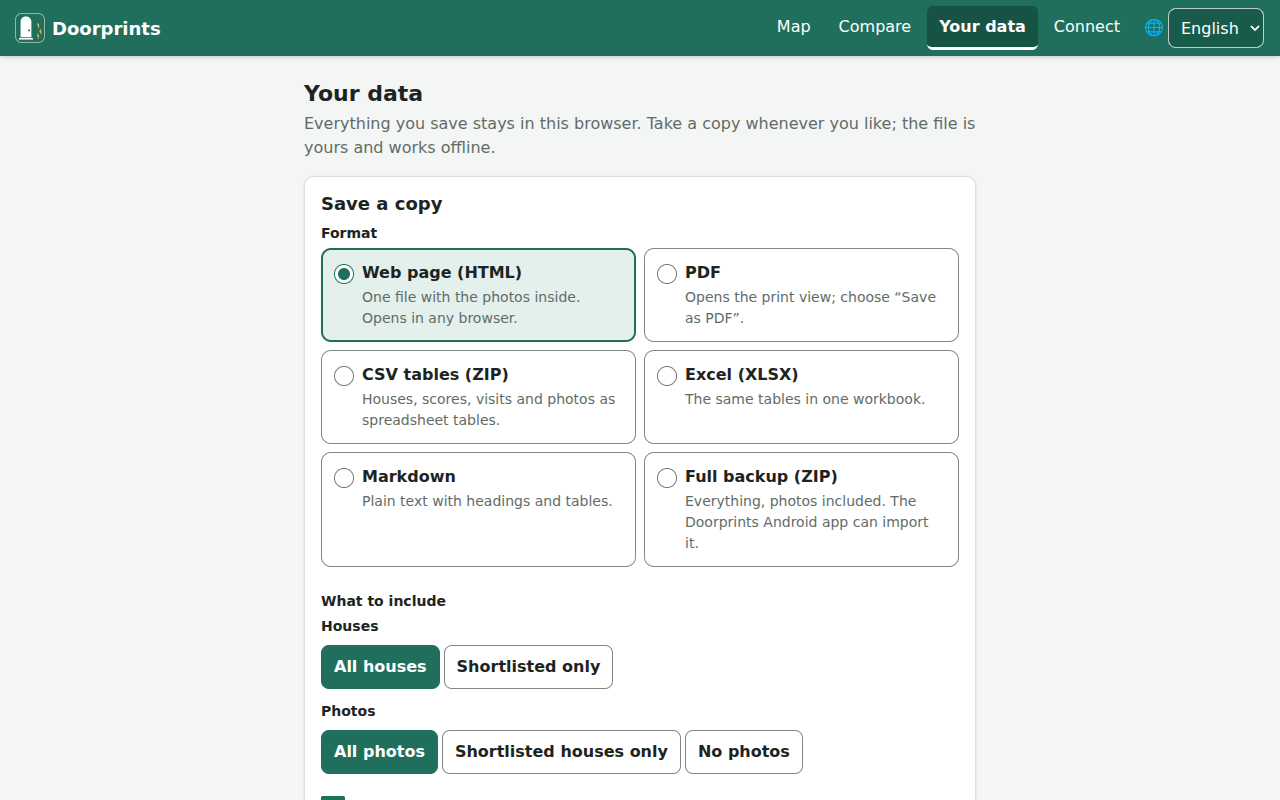
Save a copy of your data
A copy is a file that belongs to you. It opens without Doorprints and without the internet. Make one now and then. Always make one before you change phones or clear your browser.
On the website:
- Open Your data.
- Under Save a copy, choose a Format.
- Under What to include, choose all houses or Shortlisted only, and which photos. You can also turn on Include rejected houses and Include contact names and phone numbers.
- Choose the Language of the file.
- Choose Download. For a PDF, choose Open print view, then "Save as PDF".
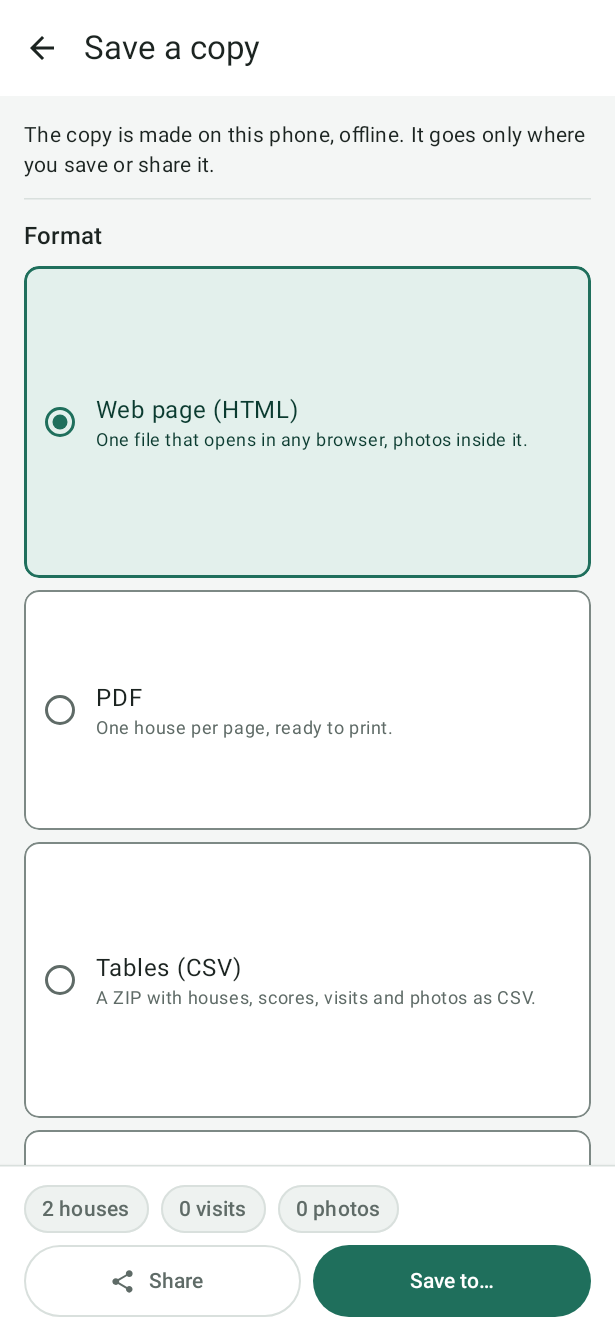
On Android:
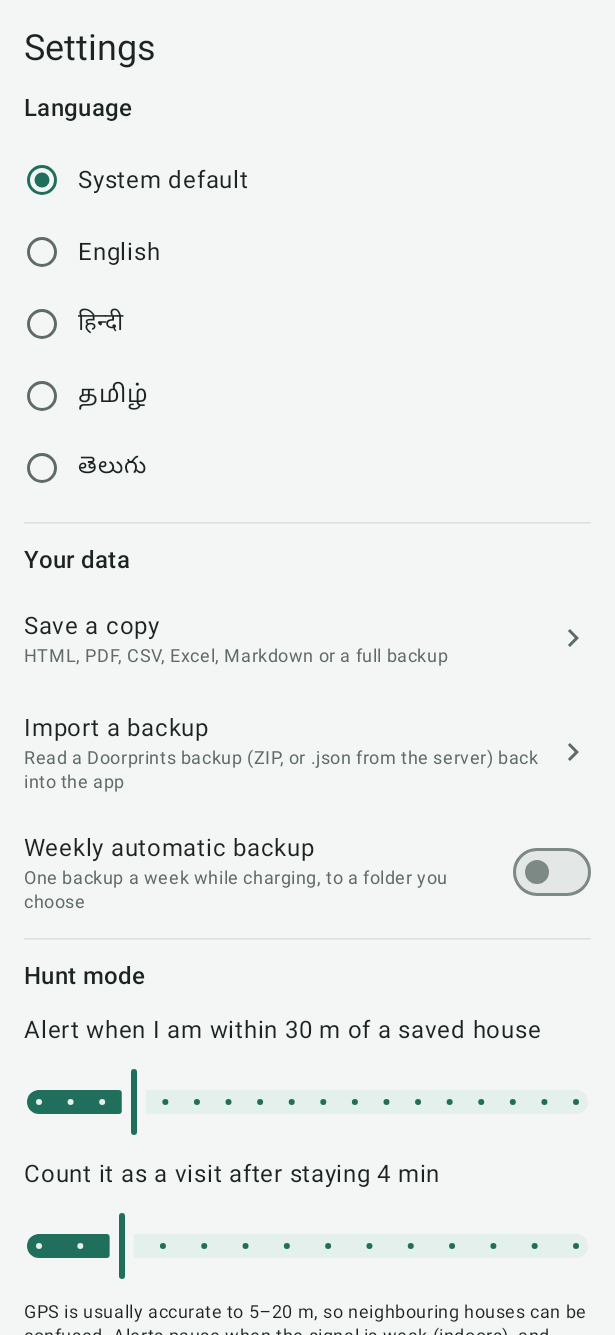
- Open Settings, then Save a copy.
- Pick the format and options.
- Tap Save to… or Share.
On iPhone: open Settings, then Save a copy, and save it to Files or share it. Every format but the PDF.
Weekly automatic backup (Android) saves one plain backup file a week, while the phone is charging, to a folder you choose, and keeps the last four. It is not encrypted. It is separate from Google Drive backups, which keep their own encrypted daily copies. A folder on the phone is lost with the phone, so choose a folder on an SD card or in a cloud app, or copy the file somewhere else now and then.
- Web page (HTML), PDF, CSV tables, Excel and Markdown are readable copies. They are good for reading, printing and sharing with family. In the tables (CSV and Excel) each house is a row, with its costs, the number of rooms and the floor; more tables list the rooms, scores, answers, visits, viewings, photos and brokers.
- Full backup (ZIP) holds your houses, visits and photos. It holds everything, unless you left some out under
What to include. It is the only file Doorprints can read back in, with the backup file of your server (
.json).
A copy with contact details holds owners' and brokers' phone numbers, and the list of your Brokers. Share it carefully.
Share updates with someone you hunt with
On Android or iPhone, in Settings, under Your data, tap Share updates with…. Add the person's name once ("Priya"), then tap Share updates with Priya: Doorprints makes a file of everything that changed since you last shared with her (the first time, your whole list) and opens the share sheet, so you can send it on WhatsApp, by email or any other way. On her phone, opening the file starts Doorprints, which shows what would change and merges it with her list when she taps Import. When both of you share your updates now and then, you hunt as one from two phones. Turn Include contact details off to keep owners' and brokers' phone numbers out of the file. A house you deleted is deleted on her phone too when she imports your update (Houses deleted by the sender in the preview), unless she changed it after you deleted it. She can also import your update on the website or on an iPhone.
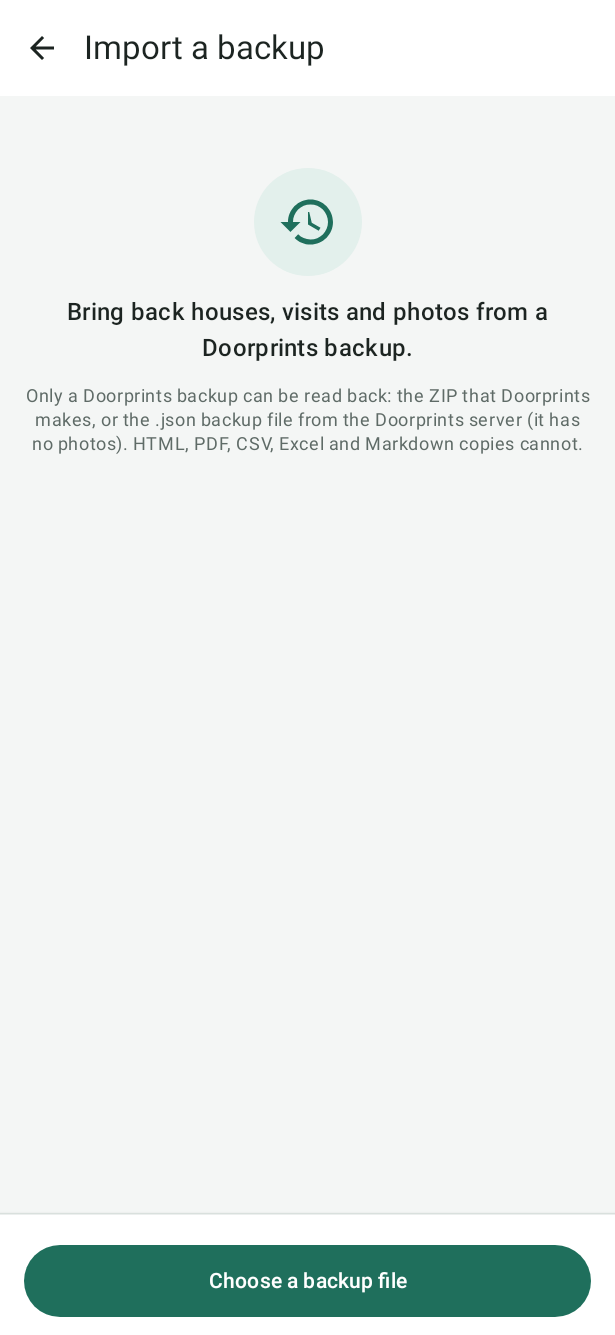
Import a backup
Import a backup brings houses, visits and photos back from a Full backup (ZIP), the server's backup file
(.json, without photos) or an update someone shared with you. Every app can read a backup made by any other.
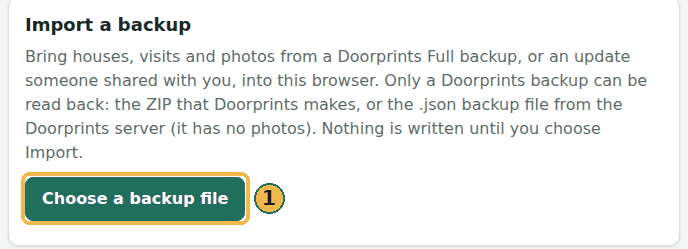
- On the website, open Your data and find Import a backup. On Android or iPhone, open Settings, then Import a backup.
- Choose Choose a backup file. (On a phone you can also open the file from another app, such as WhatsApp or
Files, and choose Doorprints.) If you installed the website on a computer (Chrome or Edge), you can also
double-click a Doorprints backup (
.zip) to open it in Import a backup. - Doorprints checks the file and shows What this would change. Nothing changes yet.
- Choose how to import:
- Merge with what I have: a house already on this phone is updated only if the backup's version is newer. When the file would replace something you have, Doorprints offers Keep mine, add only what's new: what you already have stays as it is, even where the file is newer. If you deleted houses here that the file still has, turn on Also bring back … houses deleted on this phone (or in this browser) to get them back.
- Add everything as new copies: nothing on this phone is changed. Houses you already have will appear twice.
- Tap Import.
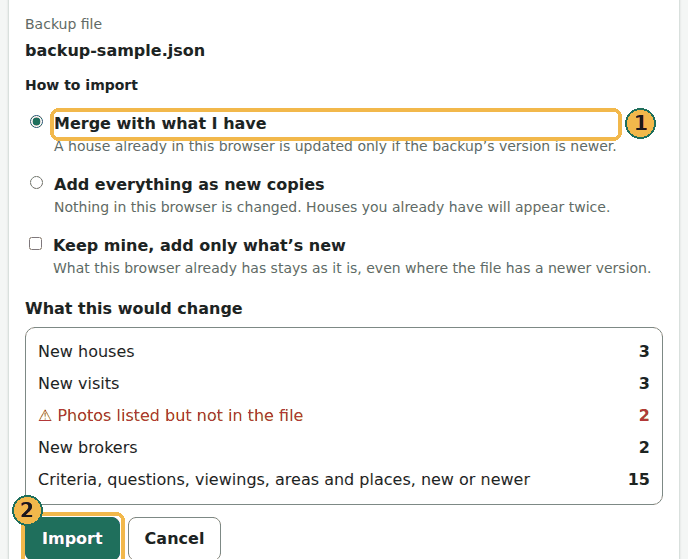
The preview also counts the new and updated brokers. If a house's floor in the file is outside -5 to 200, the preview says so: that house comes in with its floor left blank.
On the website and on Android, Undo this import removes the copies an Add everything as new copies import made (on the website, until you leave the page).
Readable copies (HTML, PDF, CSV, Excel, Markdown) cannot be imported.
Google Drive
On the website, Your data also has Back up to Google Drive: encrypted backups in your own Drive, an 8-digit code or the recovery key to enrol another browser, and deletion at three levels. See Back up to Google Drive. Android and iPhone Drive work is paused.